

 International
 IPTV

 Ai Tools
 Content Writing Tools
 Plagirism Checker Tools



 Windows
 Office
 Anti Virus

 Facebook
 Instagram
 Tiktok
 Twitter

 Theme
 Plugin

 Xbox
 Playstation
 Rockstar
 PUBG
 PUBG UC
 Royal Pass



FDS IPTV Player for Mobile, LED TV and PC/Laptop: Start Here

Looking for one clear starting point for FDS IPTV Player for mobile, LED TV and PC/laptop? Start with your device and your playlist—not a promise of free channels. The player is the app you use to organise and play media from a source you are entitled to access.
What does FDS IPTV Player do?
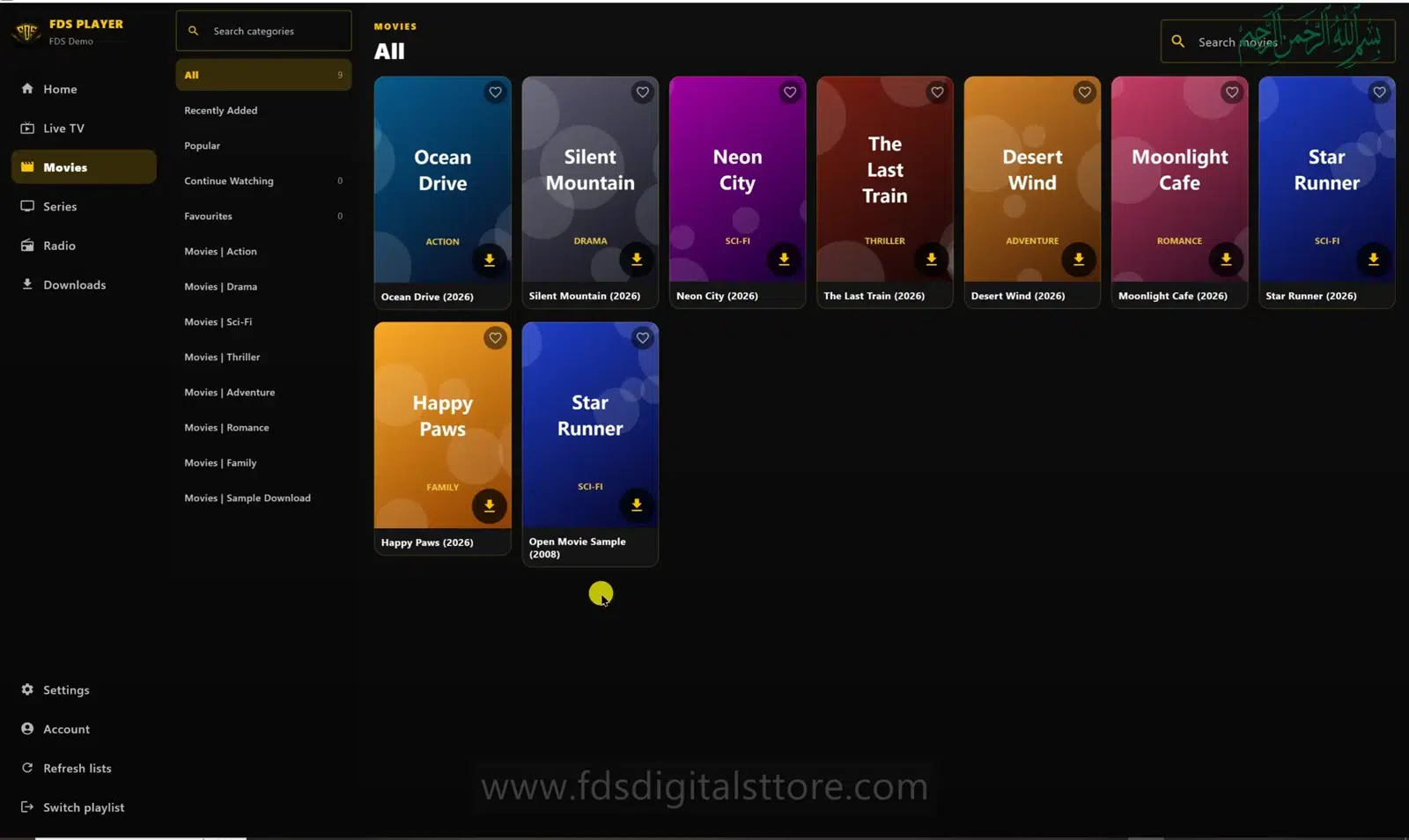
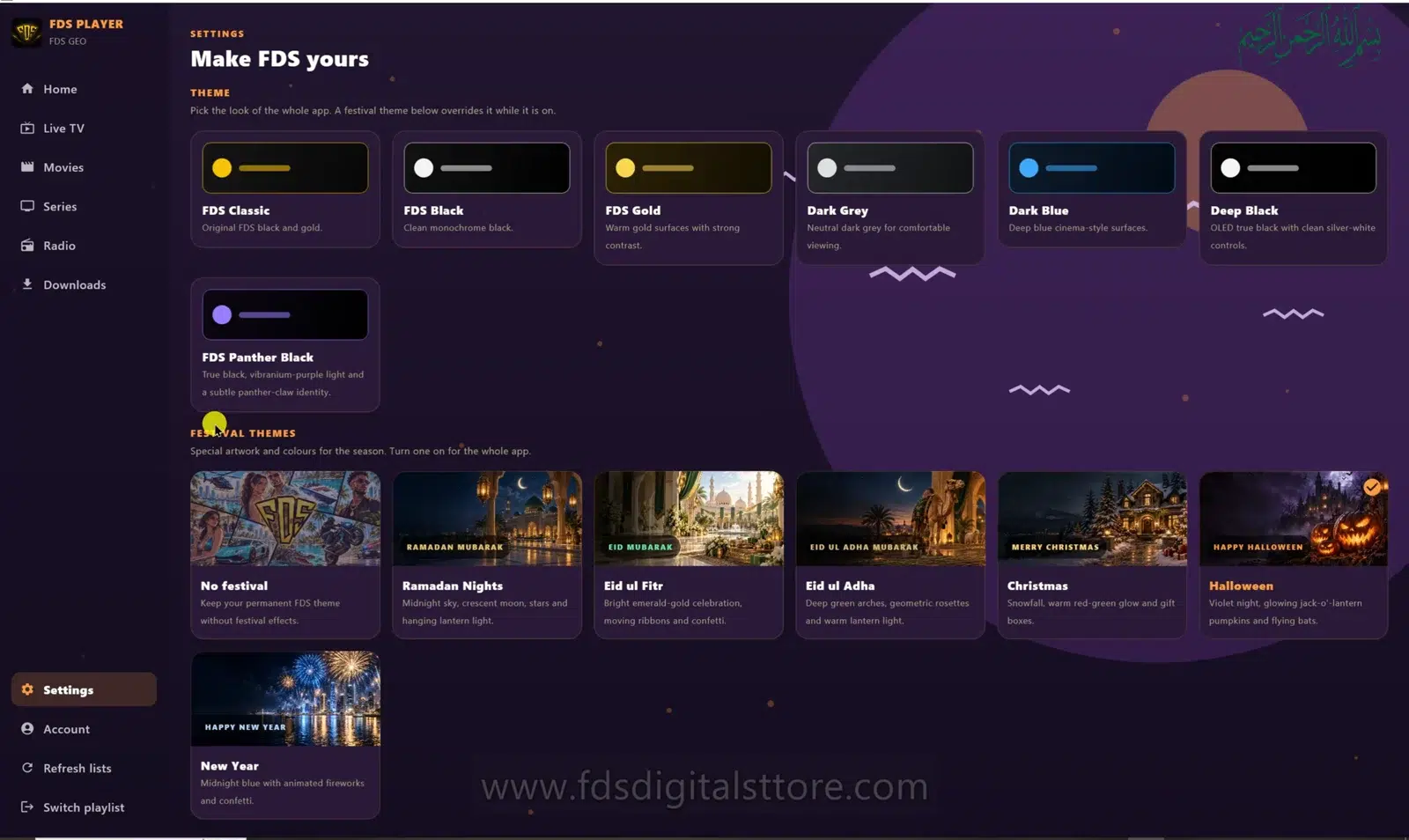
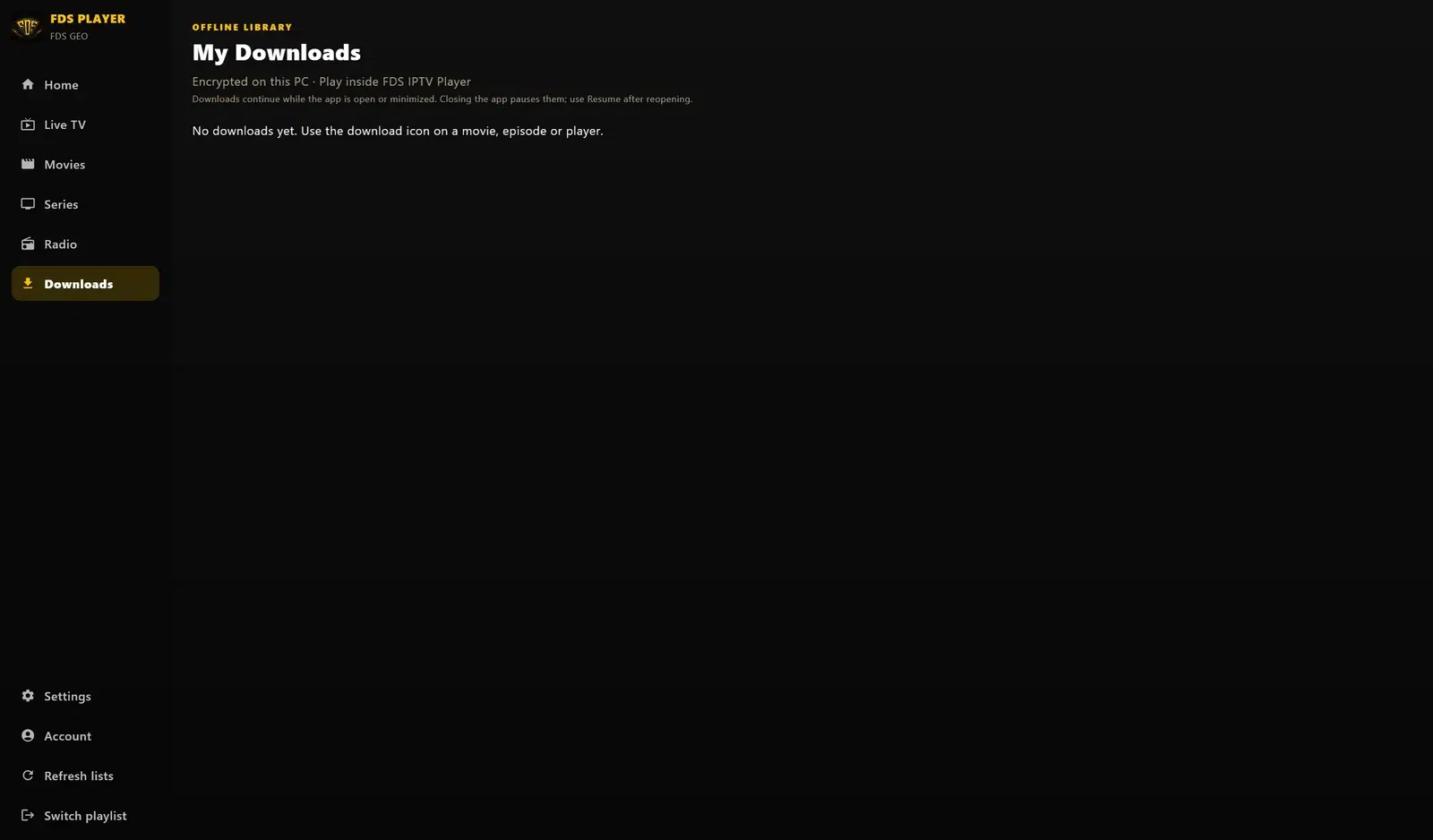
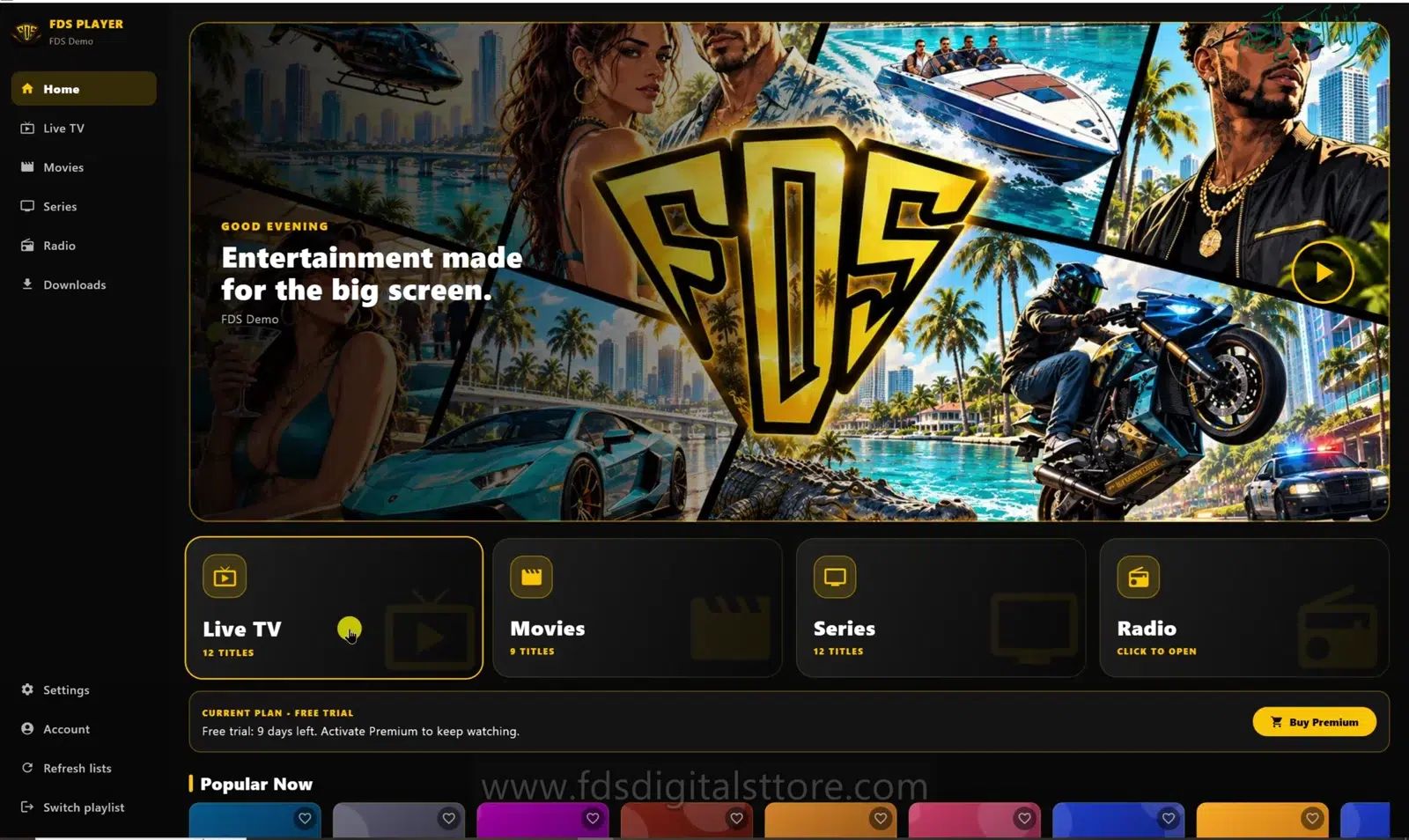
The demonstrated PC edition separates Live TV, Movies, Series and Radio, with a Downloads area and appearance settings. You connect your own source rather than receiving a catalogue from FDS. What appears inside those sections depends on the playlist, its metadata and your provider’s availability.
This distinction matters when buying a player licence: app access and content access are different things. Paying for a player does not automatically renew a provider account or add missing channels.
Choose the right device first
- Mobile: check that a current official build supports your device before installing.
- LED TV: LED describes the display, not the software. Check the TV’s operating environment, installation options and remote support. Not every LED TV can install the app.
- PC/laptop: use the compatible desktop build and check its current installation requirements.
The screenshots in this guide show the PC edition. They are not screenshots of every mobile or television version.
Your first setup in five steps
- Visit the official FDS player website and choose the supported build for your device.
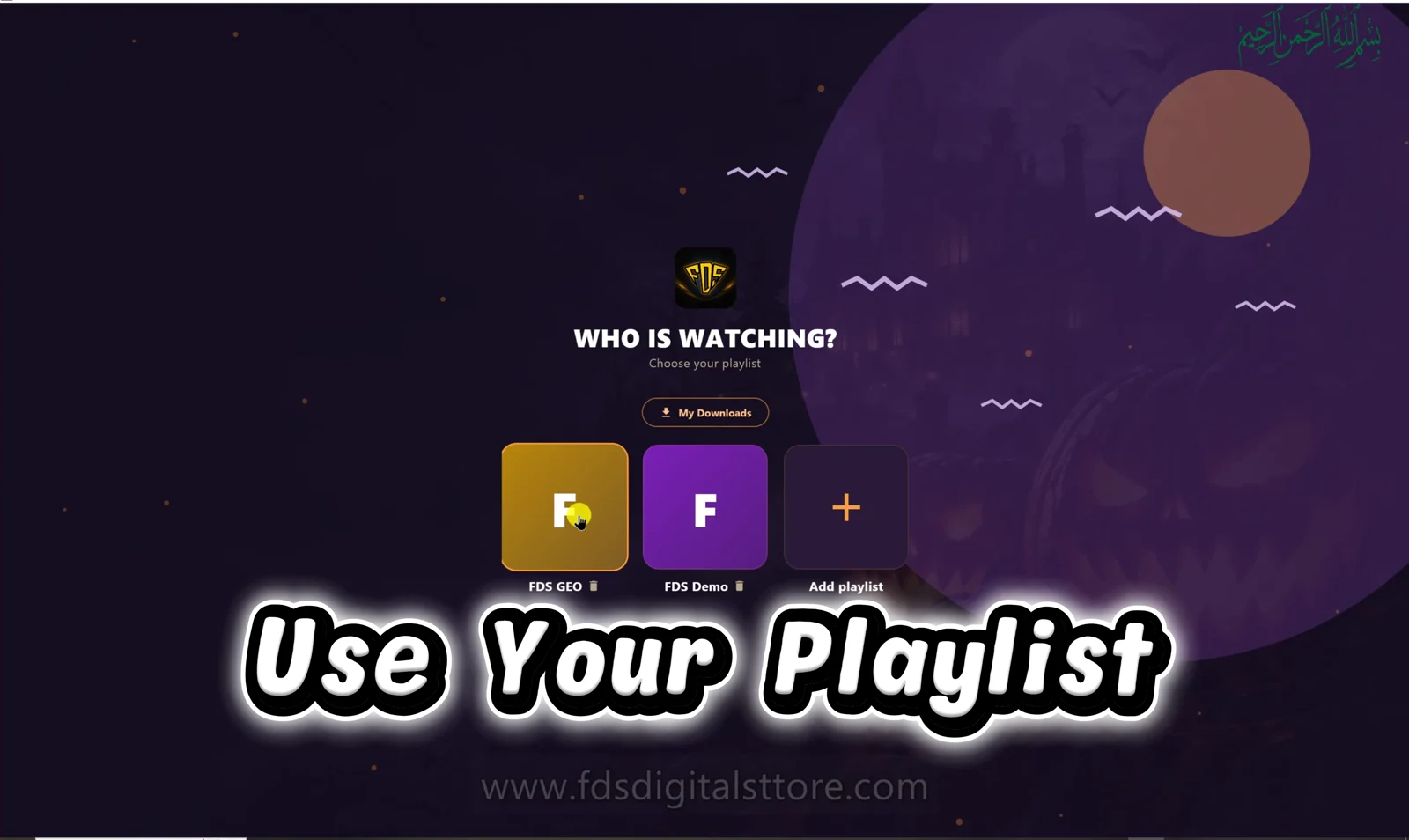
- Obtain a playlist or account details from a provider you are authorised to use.
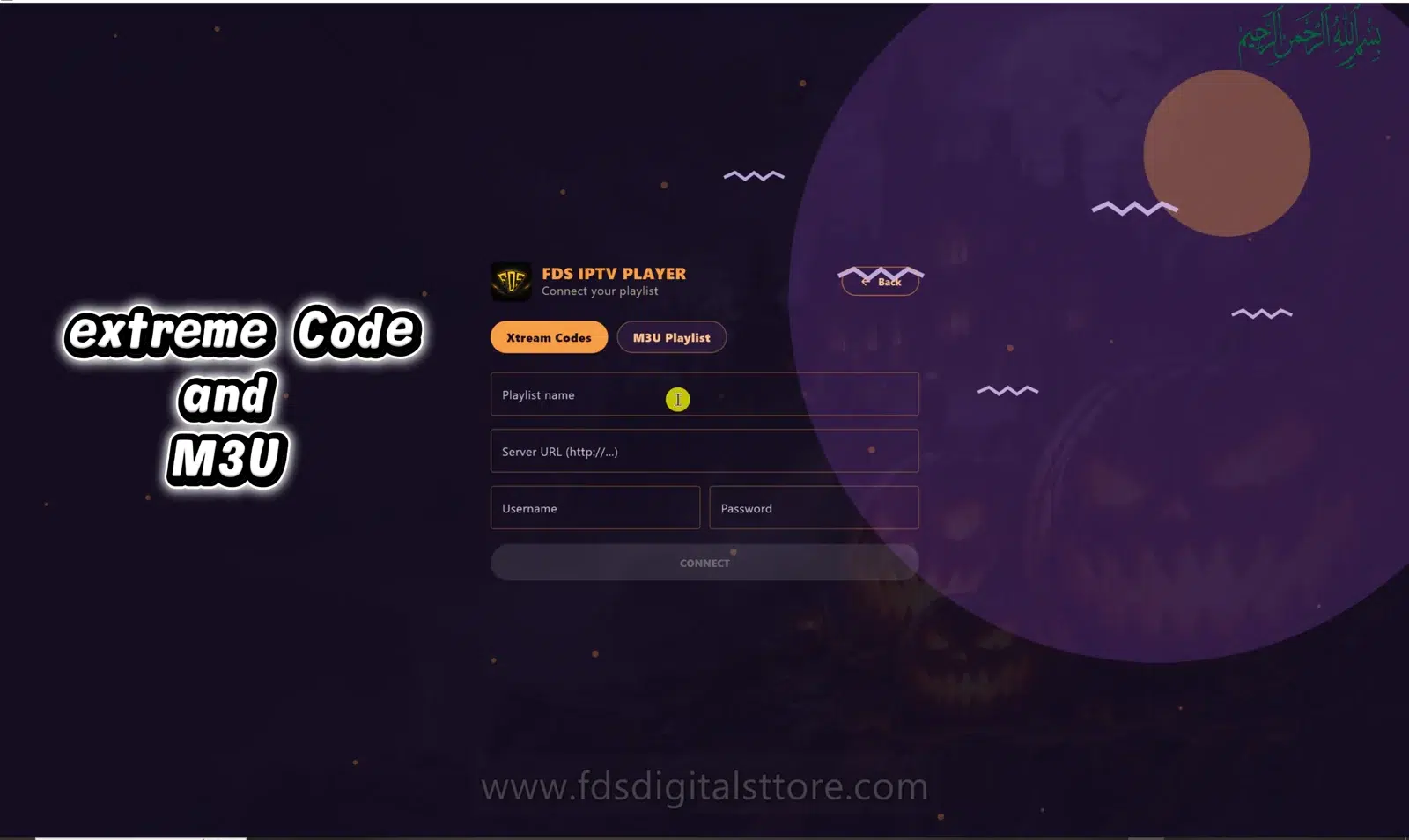
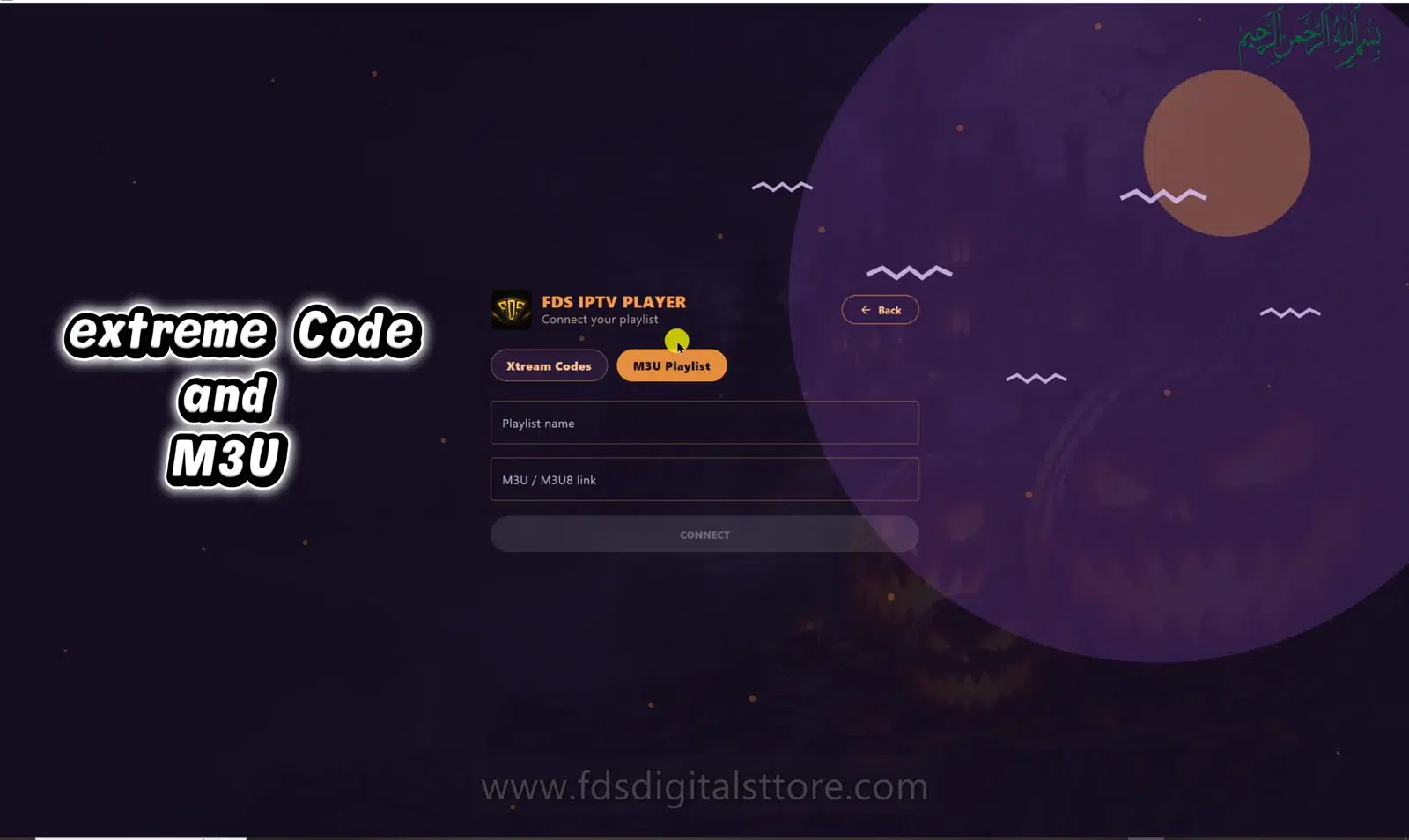
- Choose the matching connection type: an M3U playlist URL or supported server/account login.
- Give the playlist a recognisable name and enter the details carefully.
- Test one item, then explore categories and appearance settings.
If the catalogue loads but a stream fails, do not immediately reinstall. Test another item to see whether the problem affects one source or the entire connection.
What should you check before paying?
Confirm device compatibility, current player licence terms and the specific feature you need. Downloading, remote navigation and playlist options can vary between builds. Ask support about your exact device rather than relying on a general claim that a player works everywhere.
Quick questions
Does the app include channels?
No. You bring your own authorised content source.
Will it stop every buffering problem?
No player can guarantee that. Network stability, device capability and the upstream source also matter.
Explore FDS IPTV Player
Check current compatibility, builds and setup information on the official FDS IPTV Player website. Need help choosing the correct version? Contact FDS support with your device type—never post private playlist credentials.