

 International
 IPTV

 Ai Tools
 Content Writing Tools
 Plagirism Checker Tools



 Windows
 Office
 Anti Virus


 Facebook
 Instagram
 Tiktok
 Twitter

 Theme
 Plugin

 Xbox
 Playstation
 Rockstar
 PUBG
 PUBG UC
 Royal Pass




FDS IPTV Player Login Not Working? Check These Details

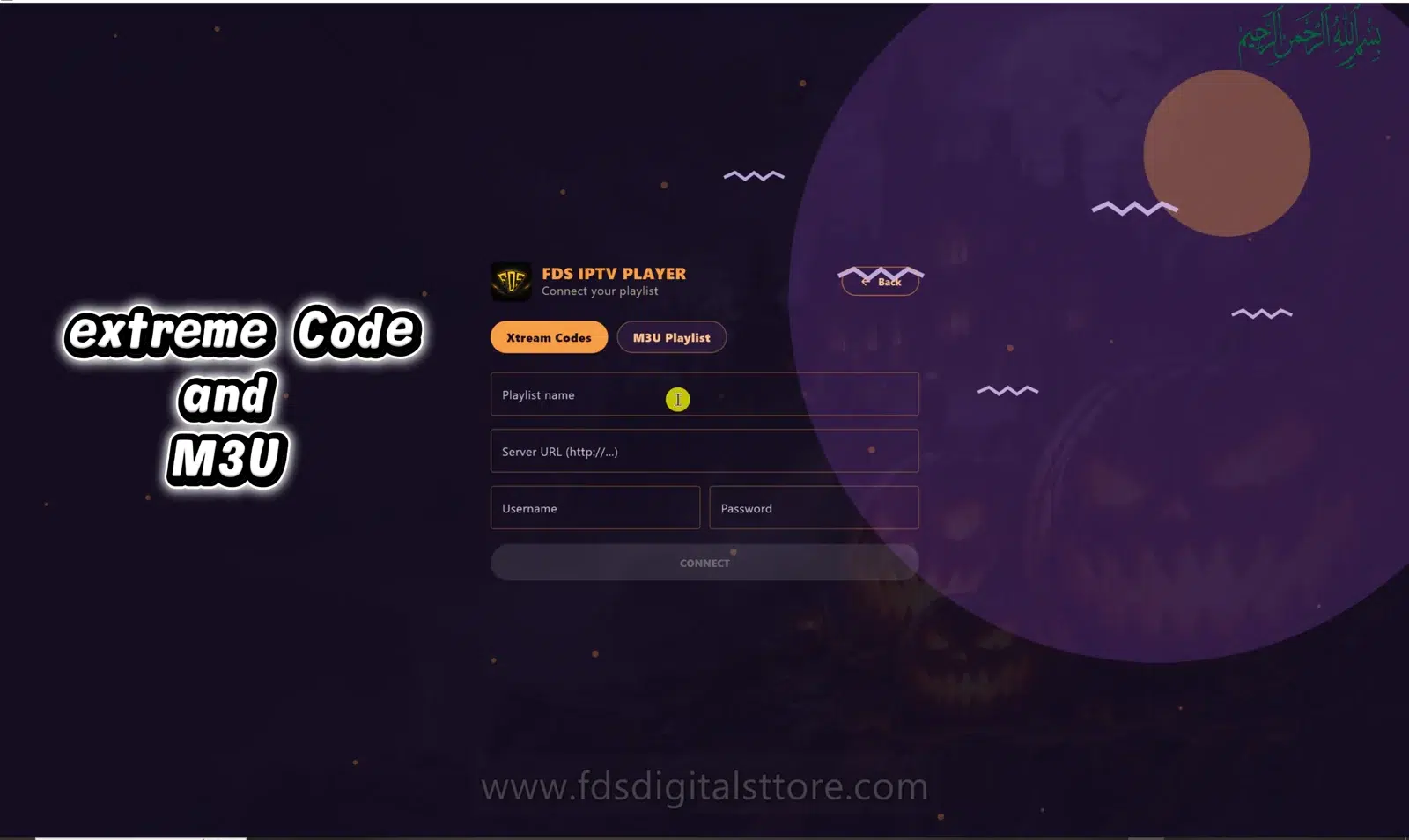
Is your FDS IPTV Player login not working? First identify which login is failing. A playlist-provider account, a player licence and a saved profile are different things. Entering one account’s details into another account’s fields will not connect your content.
Write down the exact error text before changing anything. Hide passwords and private playlist links if you take a screenshot.
Check the connection method
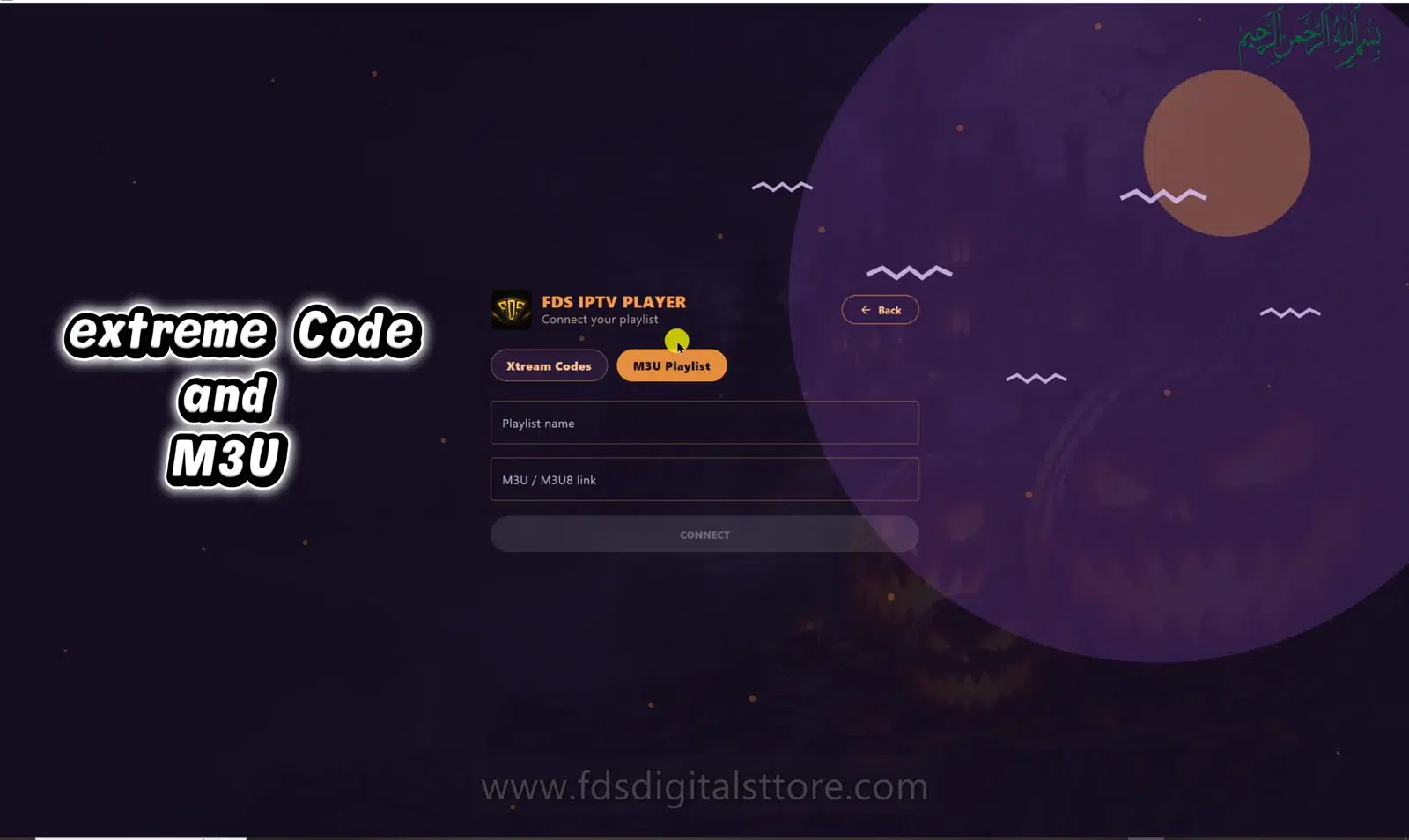
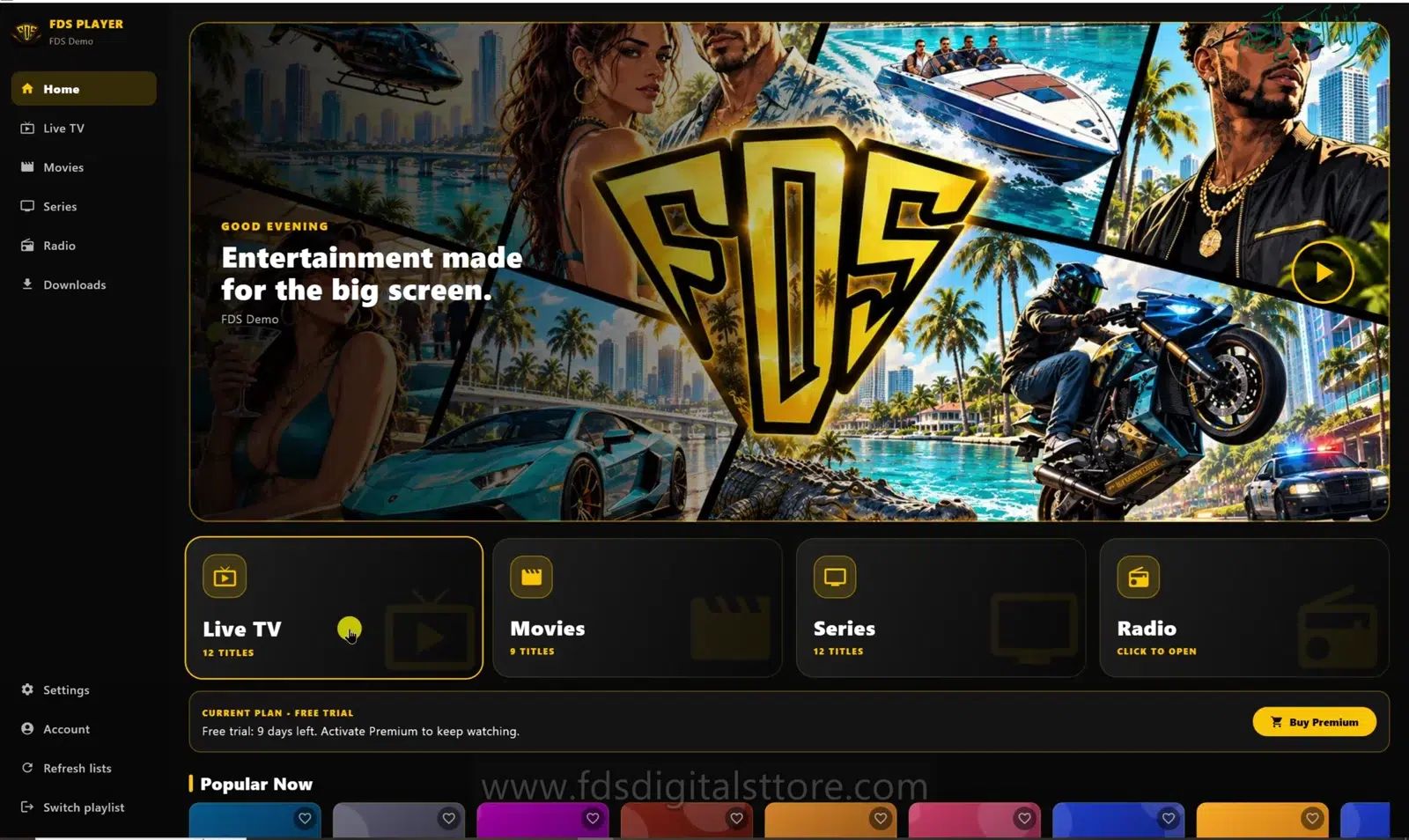
The PC demonstration shows separate tabs for M3U Playlist and server/account login. Use the tab that matches the details you received. A playlist URL belongs in the playlist workflow. A server address, username and password belong in the supported account workflow.
Check the server address carefully
Copy the complete address from your authorised provider. Include the supplied protocol and any required port. Avoid guessing an address from a brand name or copying a reseller dashboard URL instead of the playback server. If the source has moved, obtain updated details from the provider.
Check username and password formatting
- Remove accidental spaces at the beginning or end.
- Keep the original capitalisation.
- Check similar-looking characters against the source message.
- Do not insert your shop password unless that is explicitly the account the field requires.
If details must be reset, use the provider’s normal account-recovery process. Avoid repeatedly sending credentials in chat.
Ask whether the source account is active
An expired content account or a connection limit can block access even if the player itself opens normally. Ask whether another device is already using the permitted session. A player purchase cannot remove a provider’s account restrictions or guarantee source availability.
Separate a network error from an account error
If the server cannot be reached, check your connection and retry once. If you see an authentication error, verify the account details and status. Do not disable certificate validation or other security protections to force a connection.
Send support a useful report
Include your device type, app version, chosen connection method, exact error and whether any other authorised playlist works. Share only the minimum information needed through an appropriate private support channel. Never include credentials in a public review or comment.
Does this apply to mobile, LED TV and PC/laptop?
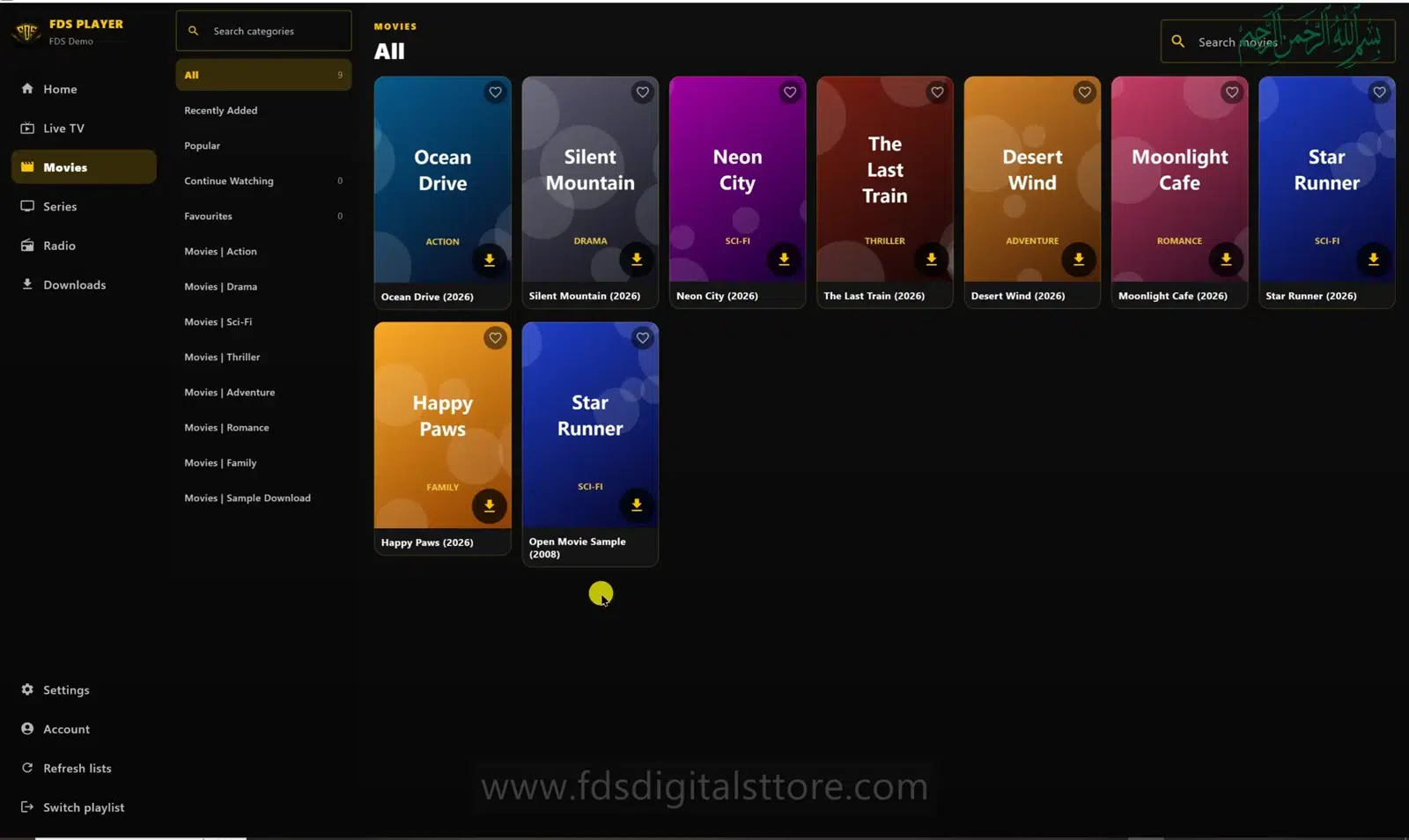
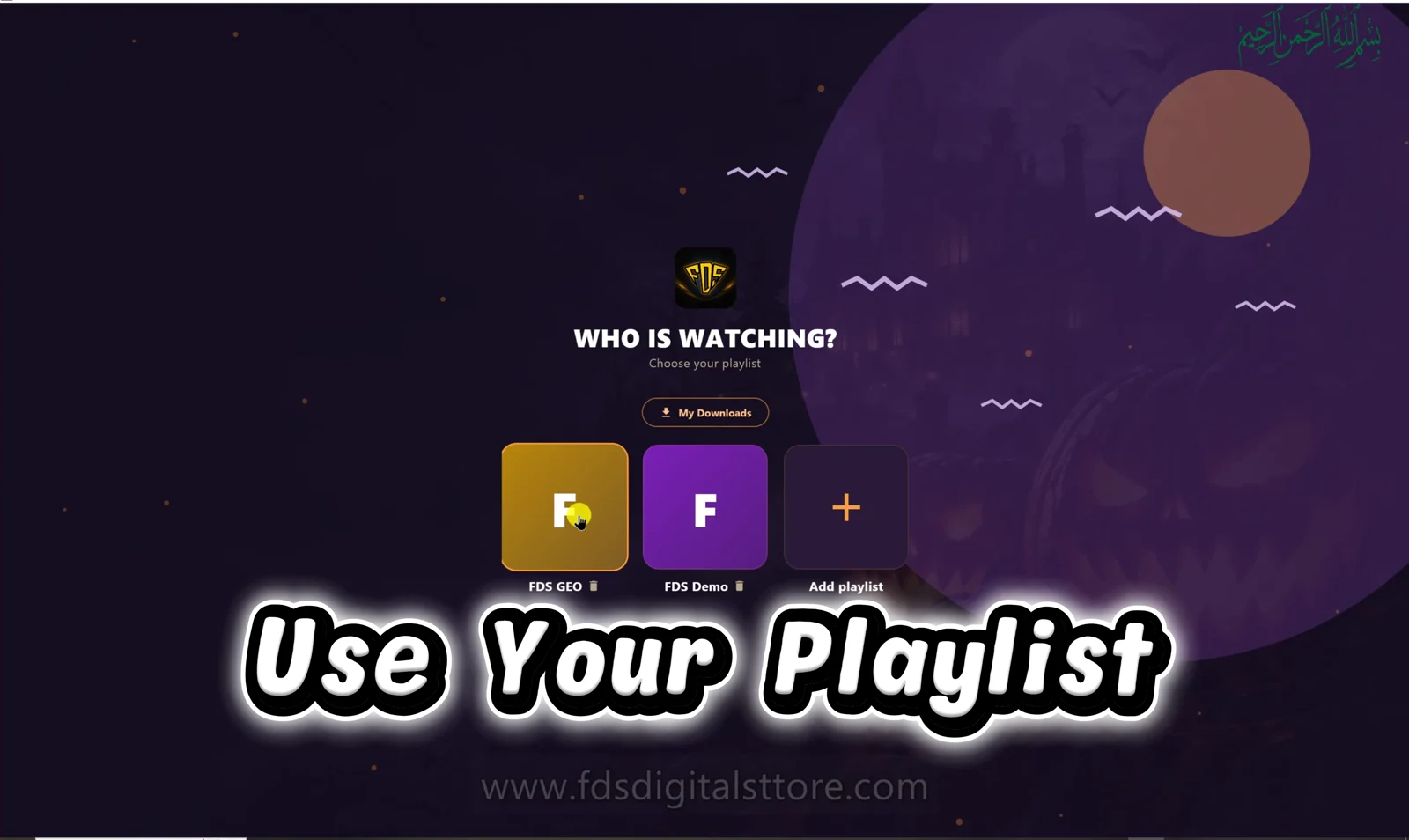
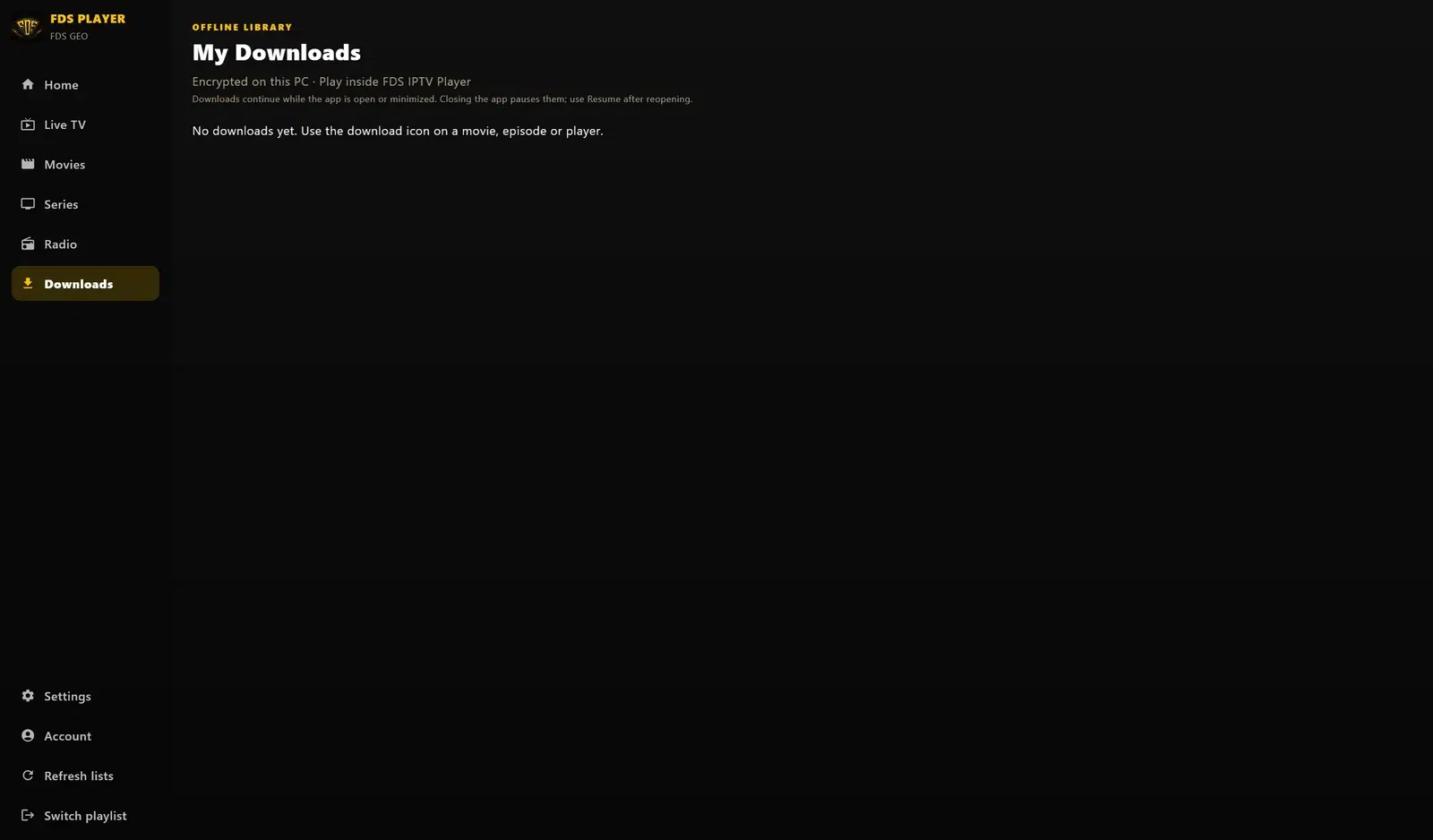
The investigation applies across supported devices, but screens and wording vary. The illustration is the PC edition.
Will reinstalling renew my account?
No. Reinstalling cannot renew an expired source subscription and may remove local settings. Check the account before taking that step.
Explore FDS IPTV Player
Check current compatibility, builds and setup information on the official FDS IPTV Player website. Need help choosing the correct version? Contact FDS support with your device type—never post private playlist credentials.