


 International
 IPTV

 Ai Tools
 Content Writing Tools
 Plagirism Checker Tools



 Windows
 Office
 Anti Virus


 Facebook
 Instagram
 Tiktok
 Twitter

 Theme
 Plugin

 Xbox
 Playstation
 Rockstar
 PUBG
 PUBG UC
 Royal Pass




Find Movies and Series Faster in FDS IPTV Player

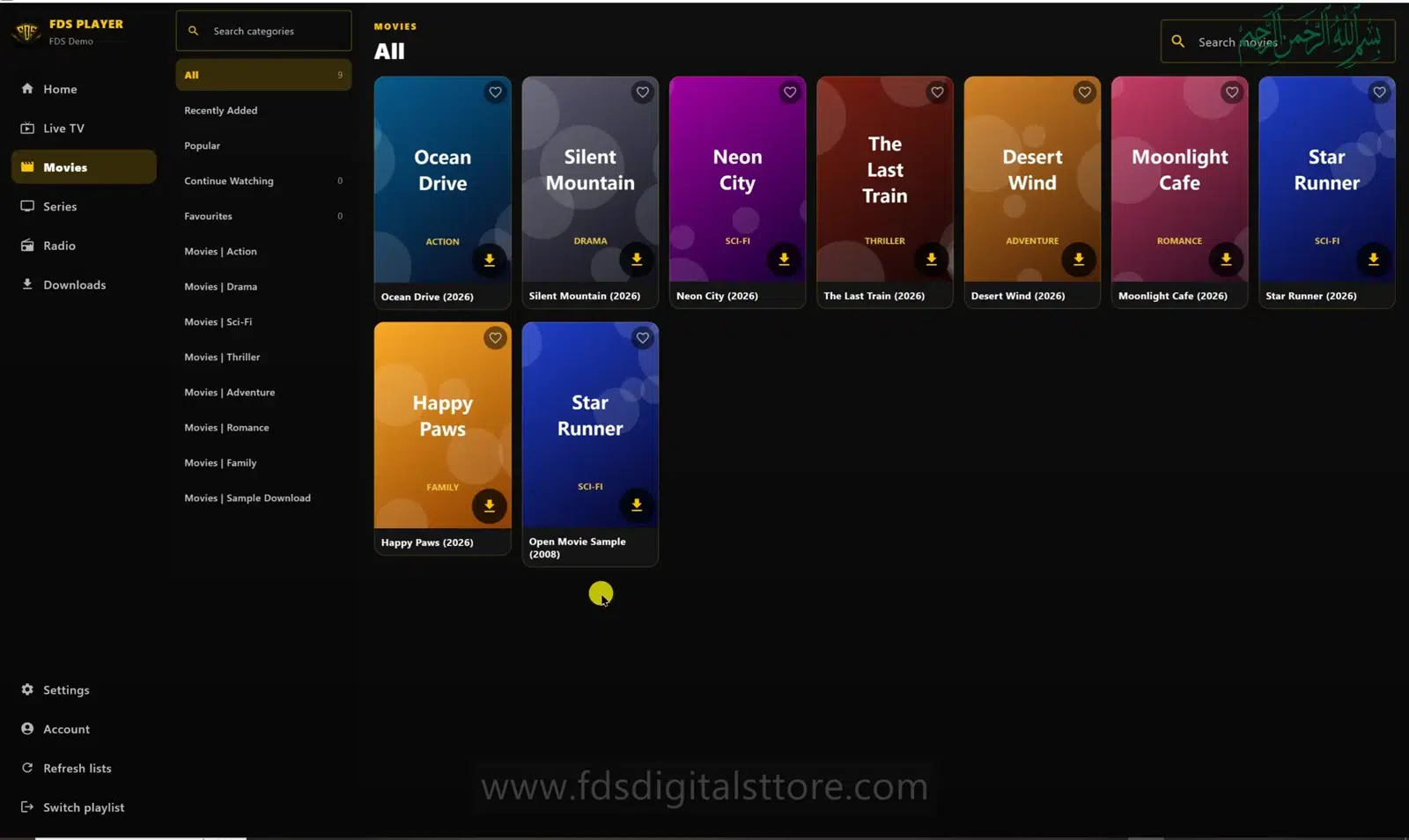
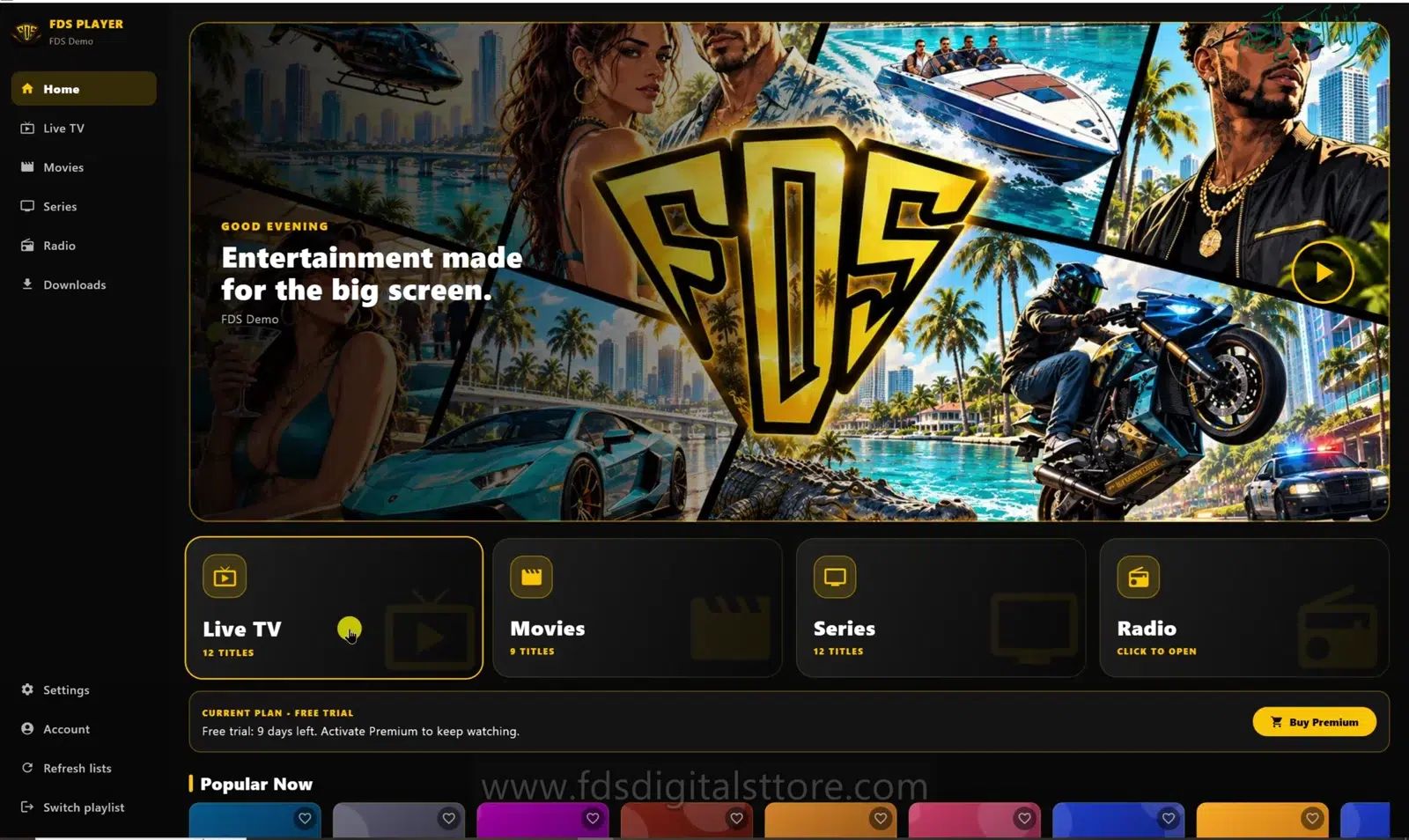
The quickest way to browse FDS IPTV Player movies and series is to start in the right section and narrow the list before scrolling. The PC demonstration shows category navigation alongside a movie grid. The actual titles you see come from your own authorised source.
Start with Movies or Series
A film and an episodic programme can have different catalogue structures. Choose the appropriate section first. If a source places everything in a basic list, do not expect the player to invent seasons, episode descriptions or missing artwork.
On the reviewed PC implementation, structured series episodes are available for supported server/account playlists. M3U playlists may not provide the same episode organisation.
Use categories before searching
- Open Movies or Series.
- Choose a relevant source-provided category.
- Use the visible search field to narrow the list.
- Try a shorter part of the title if the first search returns nothing.
- Return to the broader category if you accidentally filtered too much.
Spelling and naming can differ between providers. Search what your source actually calls the item rather than assuming a promotional title will match exactly.
Use available library shortcuts
The reviewed desktop interface includes shelf labels such as Recently Added, Popular, Continue Watching and Favourites. Where these are available in your build, use them to revisit items instead of repeating a long search.
These shortcuts describe navigation, not a promise that every provider supplies popularity data or that your progress synchronises to another device. Check the selected playlist when a familiar item appears to be missing.
Why might a title be missing?
- Your source may not include it.
- The provider may have renamed or removed it.
- You may be in another playlist or category.
- The catalogue may need refreshing after a confirmed source update.
A player update cannot guarantee access to a particular film. Contact your authorised content provider about catalogue availability; ask FDS support about repeatable interface problems.
Make browsing comfortable on your device
On mobile, keep search terms short. On a compatible LED TV, prioritise readable category labels from your viewing distance. On PC/laptop, use the available search and navigation controls. This guide illustrates the PC build, not every supported device layout.
Are the demonstration titles included?
No. Sample artwork demonstrates the interface. FDS IPTV Player does not supply those titles.
Will a theme change improve search results?
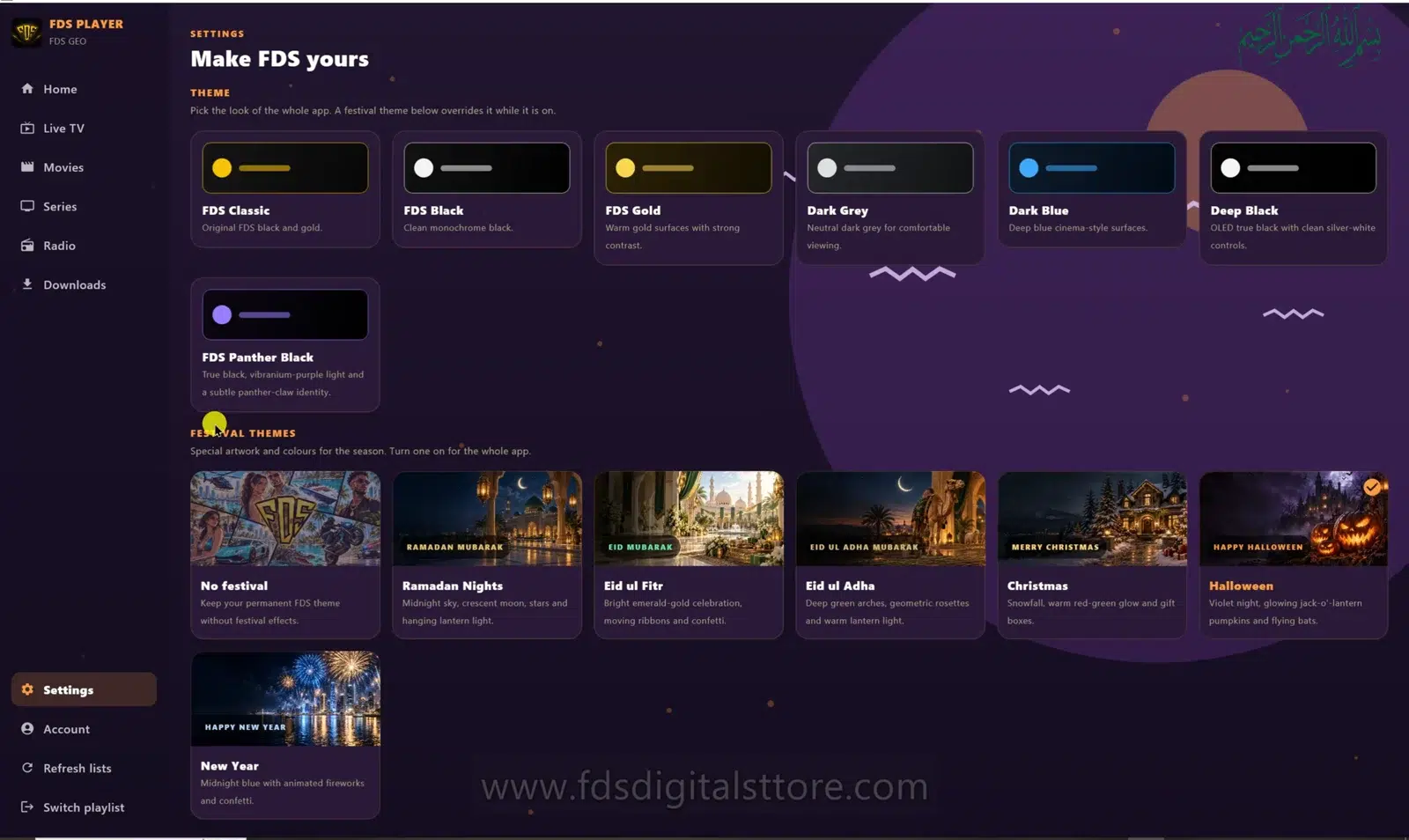
No. Themes change appearance; the catalogue and metadata still depend on the selected source.
Explore FDS IPTV Player
Check current compatibility, builds and setup information on the official FDS IPTV Player website. Need help choosing the correct version? Contact FDS support with your device type—never post private playlist credentials.