


 International
 IPTV

 Ai Tools
 Content Writing Tools
 Plagirism Checker Tools




 Windows
 Office
 Anti Virus


 Facebook
 Instagram
 Tiktok
 Twitter

 Theme
 Plugin

 Xbox
 Playstation
 Rockstar
 PUBG
 PUBG UC
 Royal Pass




Keep Your IPTV Playlists Organised in FDS Player

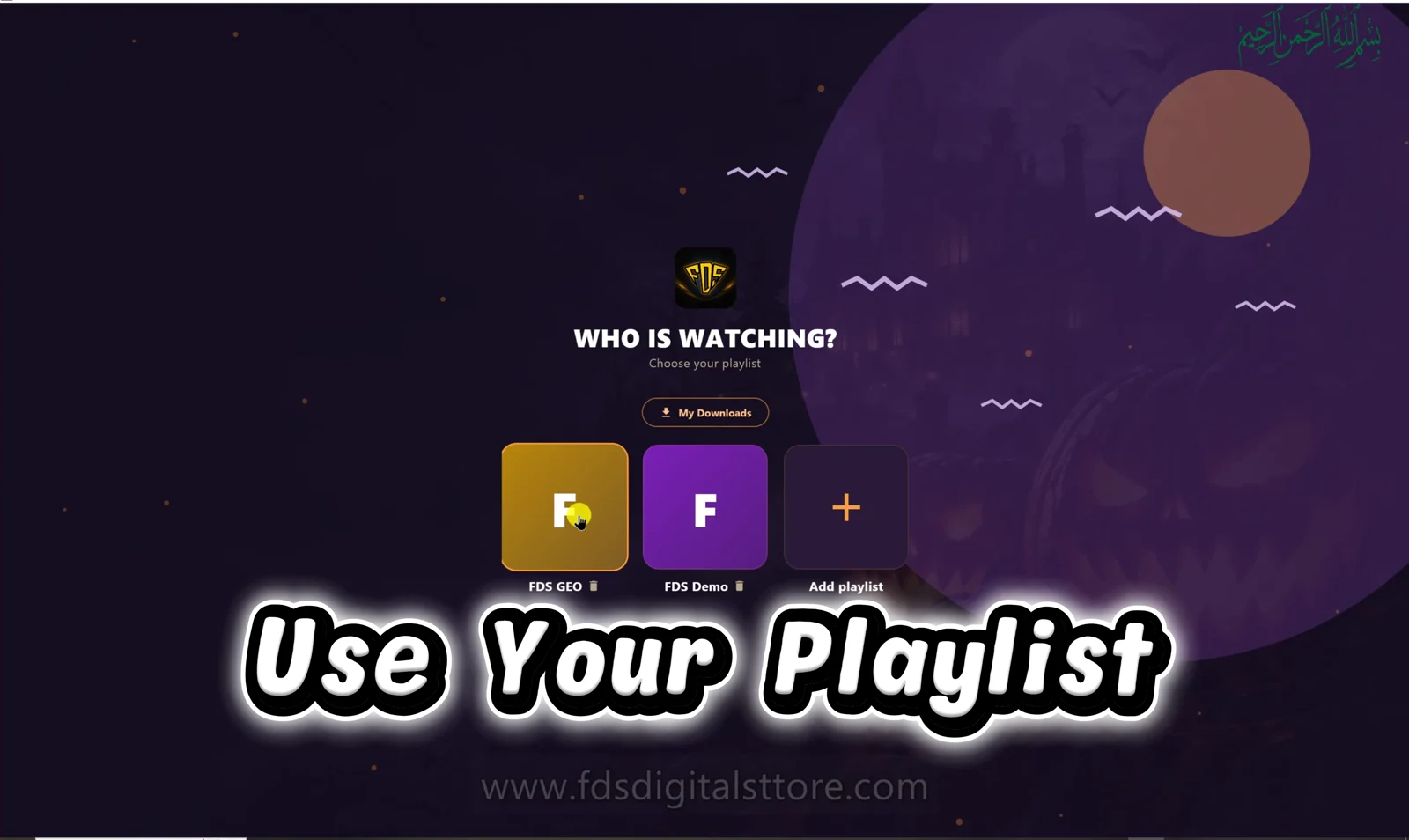
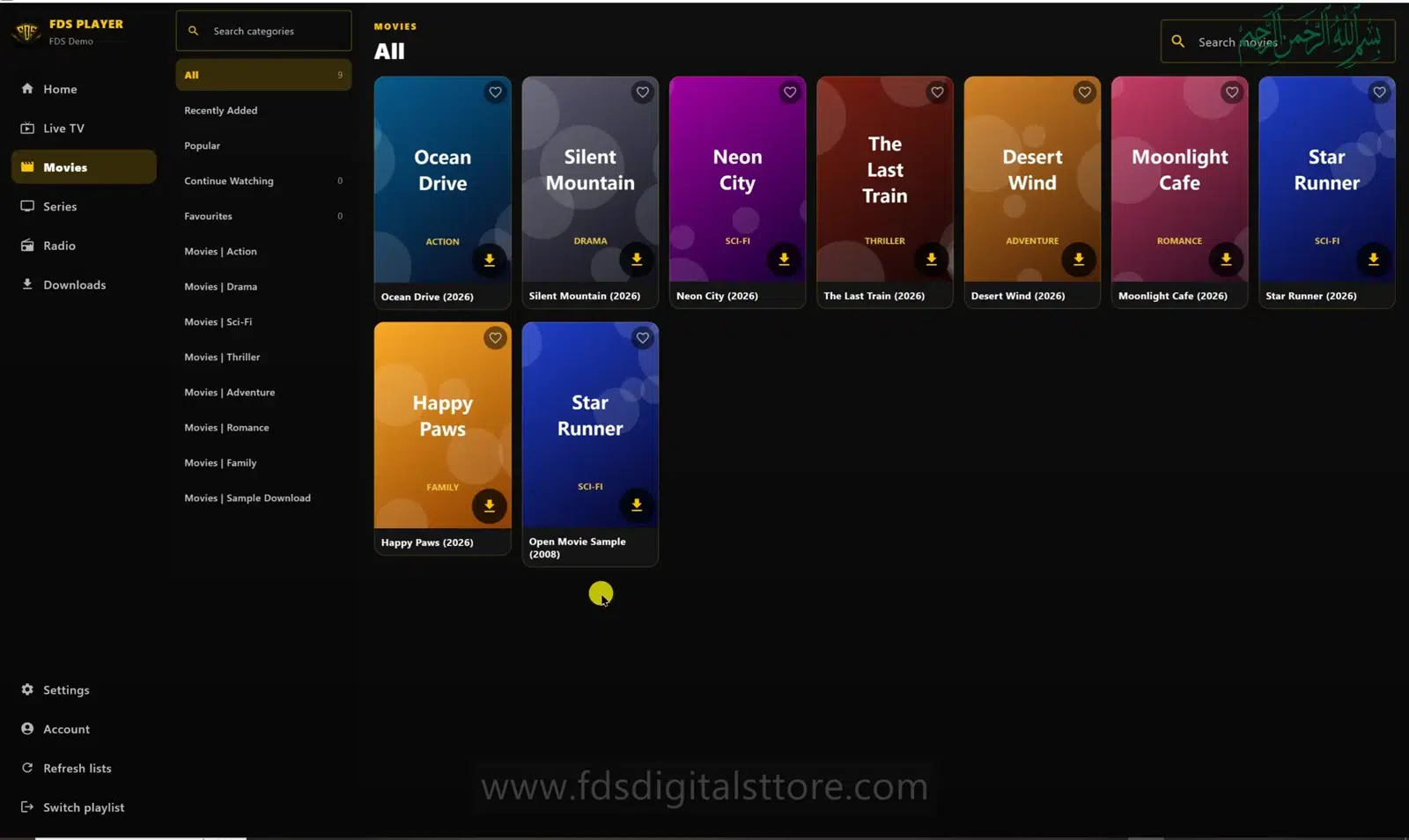
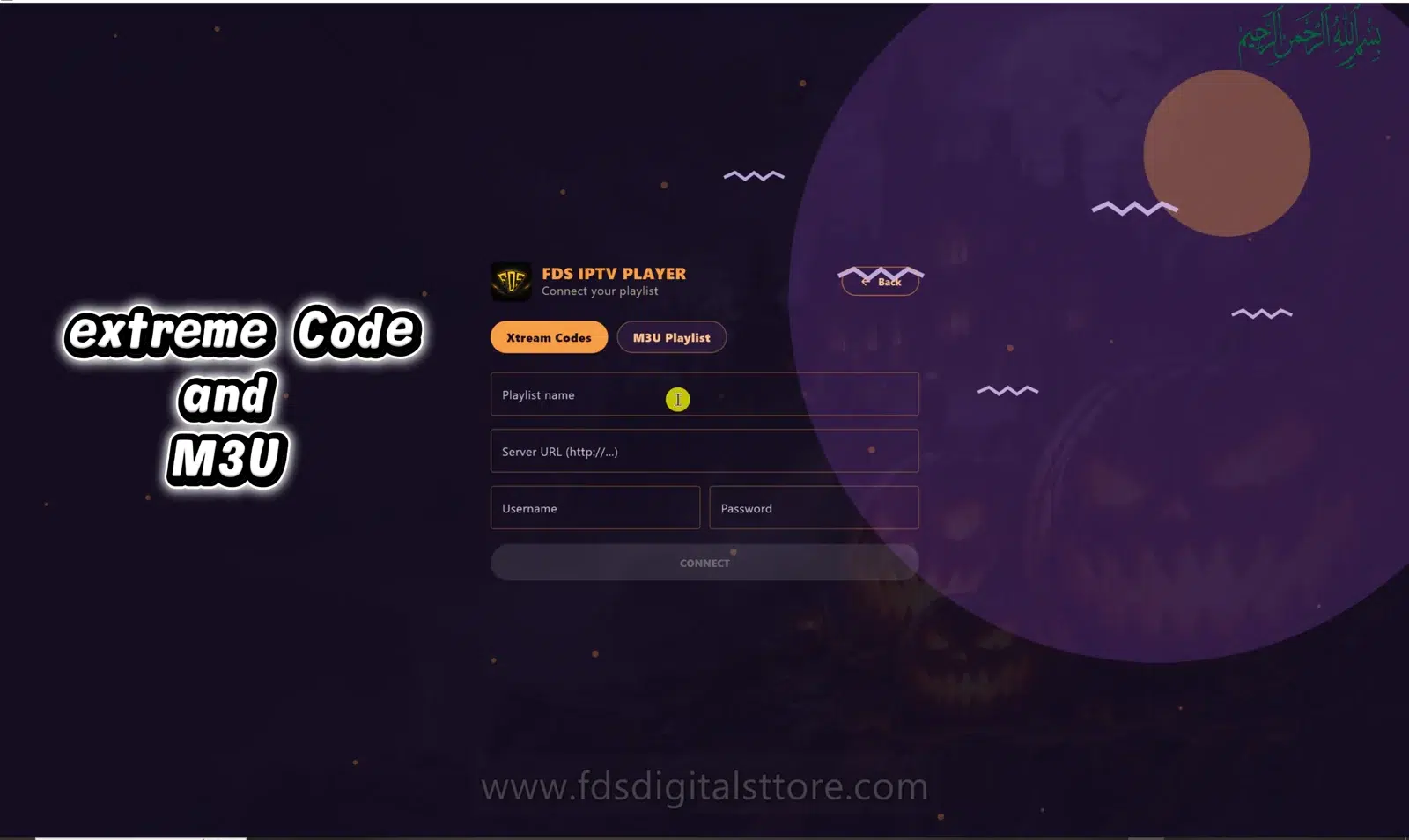
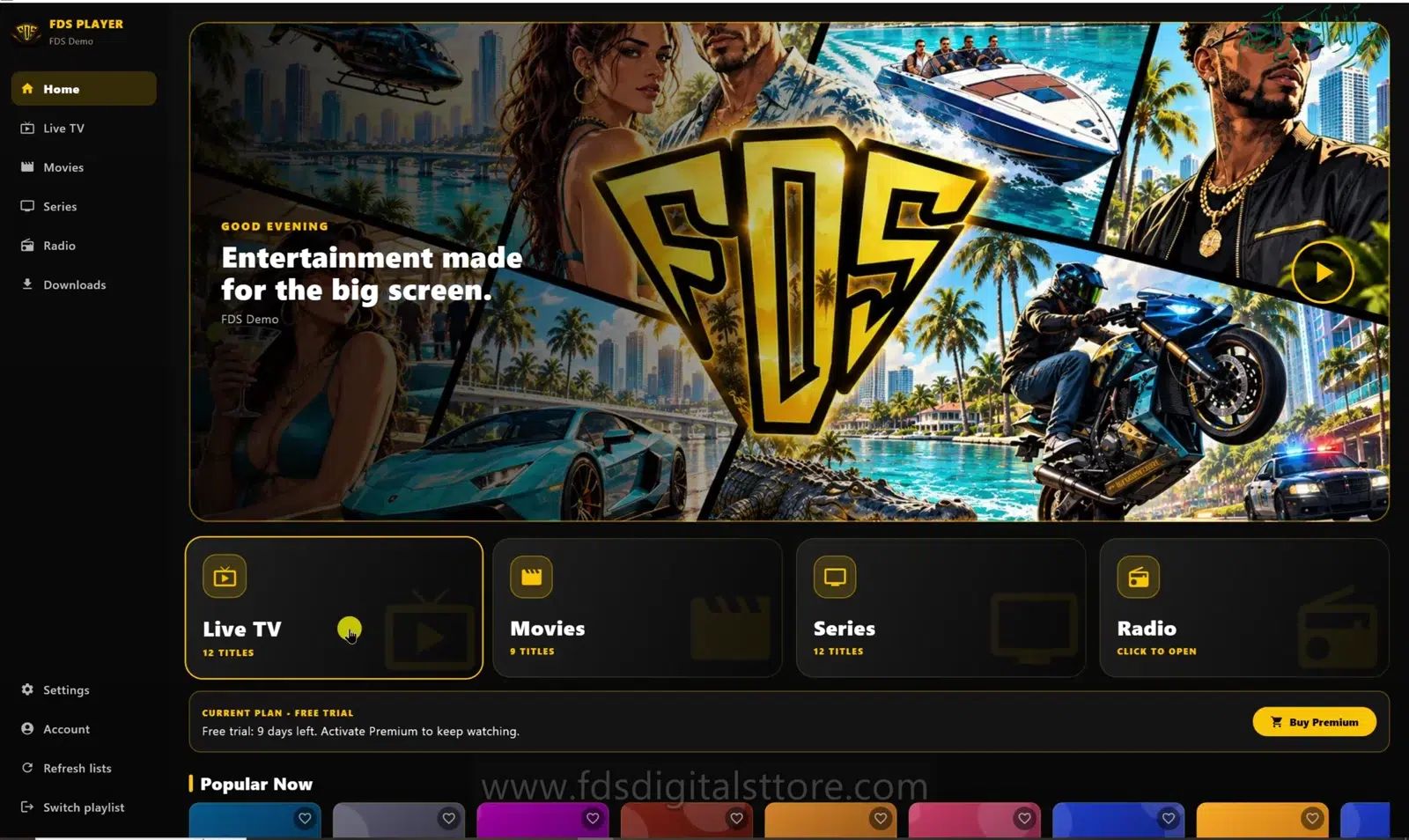
Multiple sources are easier to manage when you know which one is open. FDS IPTV Player playlists can be named so a saved source is recognisable at a glance. The demonstrated PC screen shows separate playlist tiles and an option to add a playlist.
A profile tile is not proof of a separate paid subscription, extra device entitlement or cloud synchronisation. It is a way to identify a saved connection in the demonstrated app.
Use names that make sense later
Choose a short, descriptive label such as “Personal collection” or “Living room source.” Avoid putting a password, private server URL or sensitive account reference into the visible name. A useful name tells you what the source is without exposing the connection details.
If two playlists have similar catalogues, add a distinction you understand. Otherwise it is easy to report a missing channel from the wrong source.
Switch before troubleshooting
- Note the currently selected playlist.
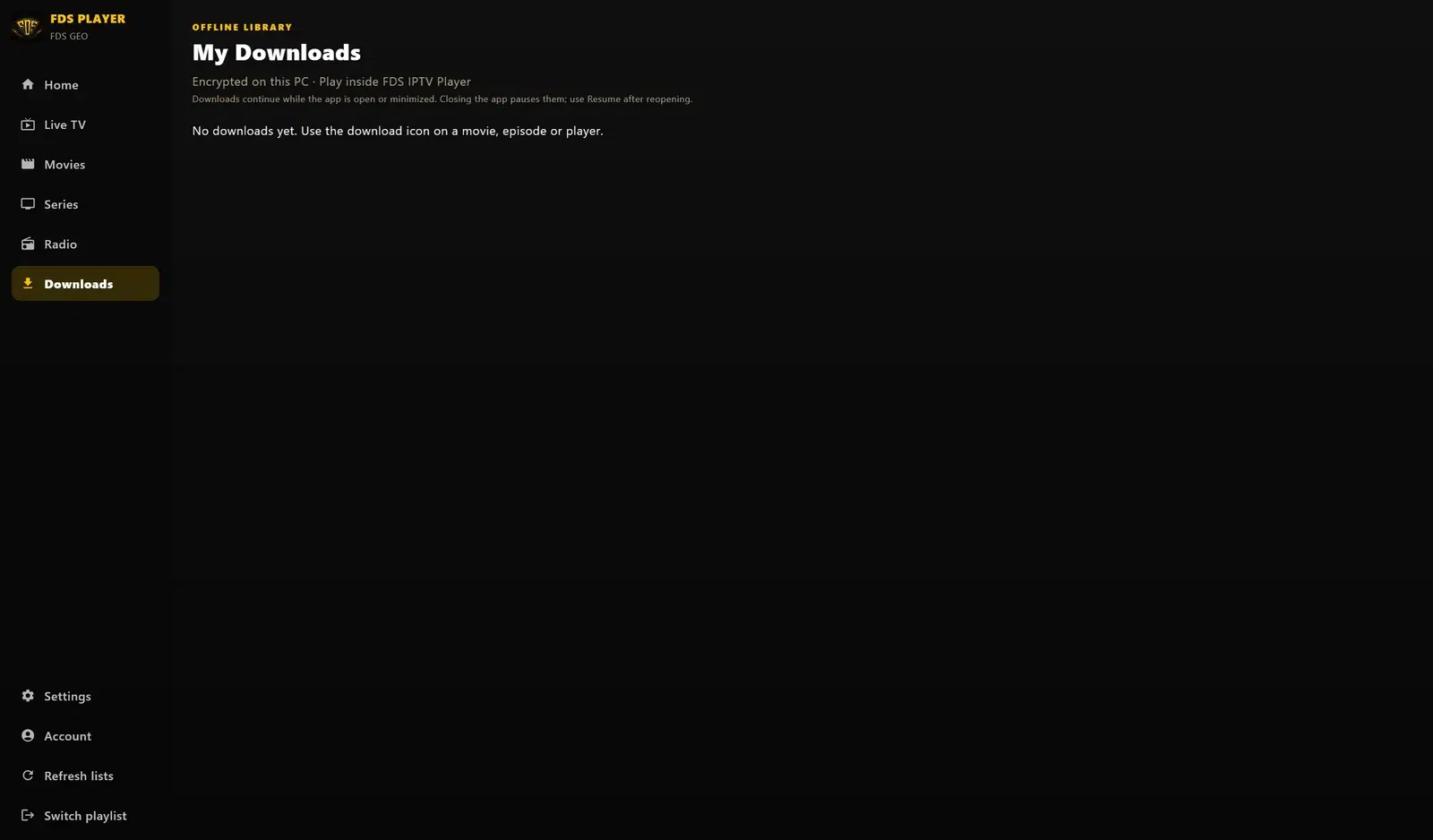
- Use Switch playlist in the PC navigation.
- Select the source you intend to use.
- Open the relevant category and test a known item.
- Check the active source again before contacting support.
The exact controls can differ in FDS IPTV Player for mobile and compatible LED TV. Do not assume a desktop navigation label appears in the same position on every device.
When should you refresh a playlist?
Refresh after a provider confirms a catalogue change or when you suspect the saved listing is outdated. In the reviewed desktop code, Refresh lists causes the catalogue to be fetched again. It does not renew your account or create items that the source has removed.
If a refresh changes nothing, confirm you are checking the correct playlist and category before repeating the action.
Keep your own small source record
Privately note where each source came from, who supports it and when access should expire. Do not store passwords in screenshots intended for public support. Distinguishing app support from provider support makes later troubleshooting much faster.
Avoid duplicate connections
Adding the same details several times under different names rarely fixes an unavailable server. Check the original connection first. Remove a saved source only when you understand the effect and have the information needed to reconnect.
Does switching playlists add more content?
No. You only see what the selected authorised source makes available.
Are settings automatically shared across devices?
This guide does not promise cross-device synchronisation. Check the behaviour of your installed build and licence terms before relying on it.
Explore FDS IPTV Player
Check current compatibility, builds and setup information on the official FDS IPTV Player website. Need help choosing the correct version? Contact FDS support with your device type—never post private playlist credentials.