


 International
 IPTV

 Ai Tools
 Content Writing Tools
 Plagirism Checker Tools




 Windows
 Office
 Anti Virus


 Facebook
 Instagram
 Tiktok
 Twitter

 Theme
 Plugin

 Xbox
 Playstation
 Rockstar
 PUBG
 PUBG UC
 Royal Pass




How to Add an M3U Playlist to FDS IPTV Player

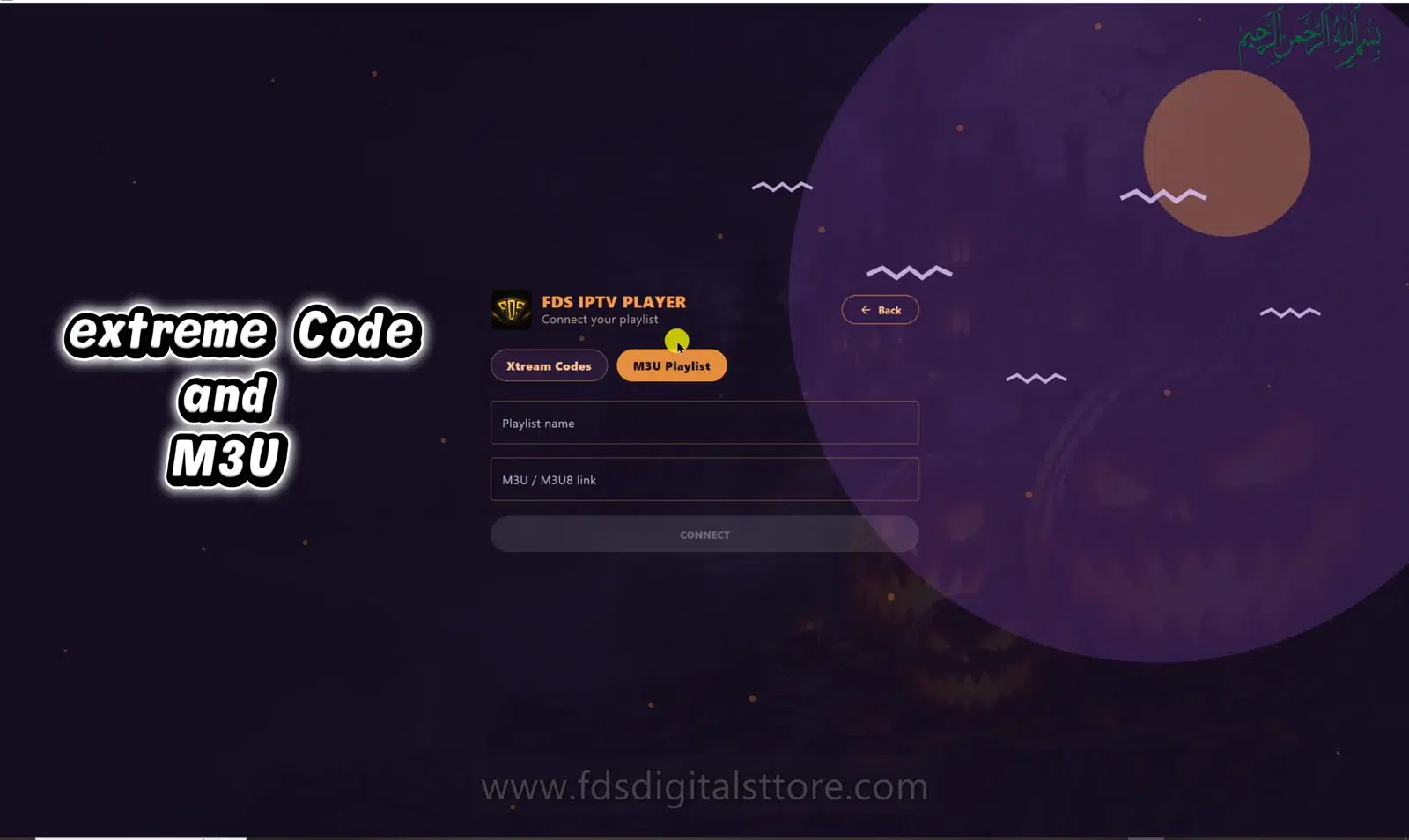
To add an M3U playlist to FDS IPTV Player, you need a valid playlist URL from your own collection or an authorised provider. A provider’s homepage, a payment receipt and a playlist URL are not interchangeable. Ask for the actual playback details if you are unsure.
Before you start
Confirm that your device supports a current FDS build and that your playlist is active. Keep the URL private: it may contain an account identifier, password or token. Do not post it in public comments or upload an unredacted screenshot when requesting help.
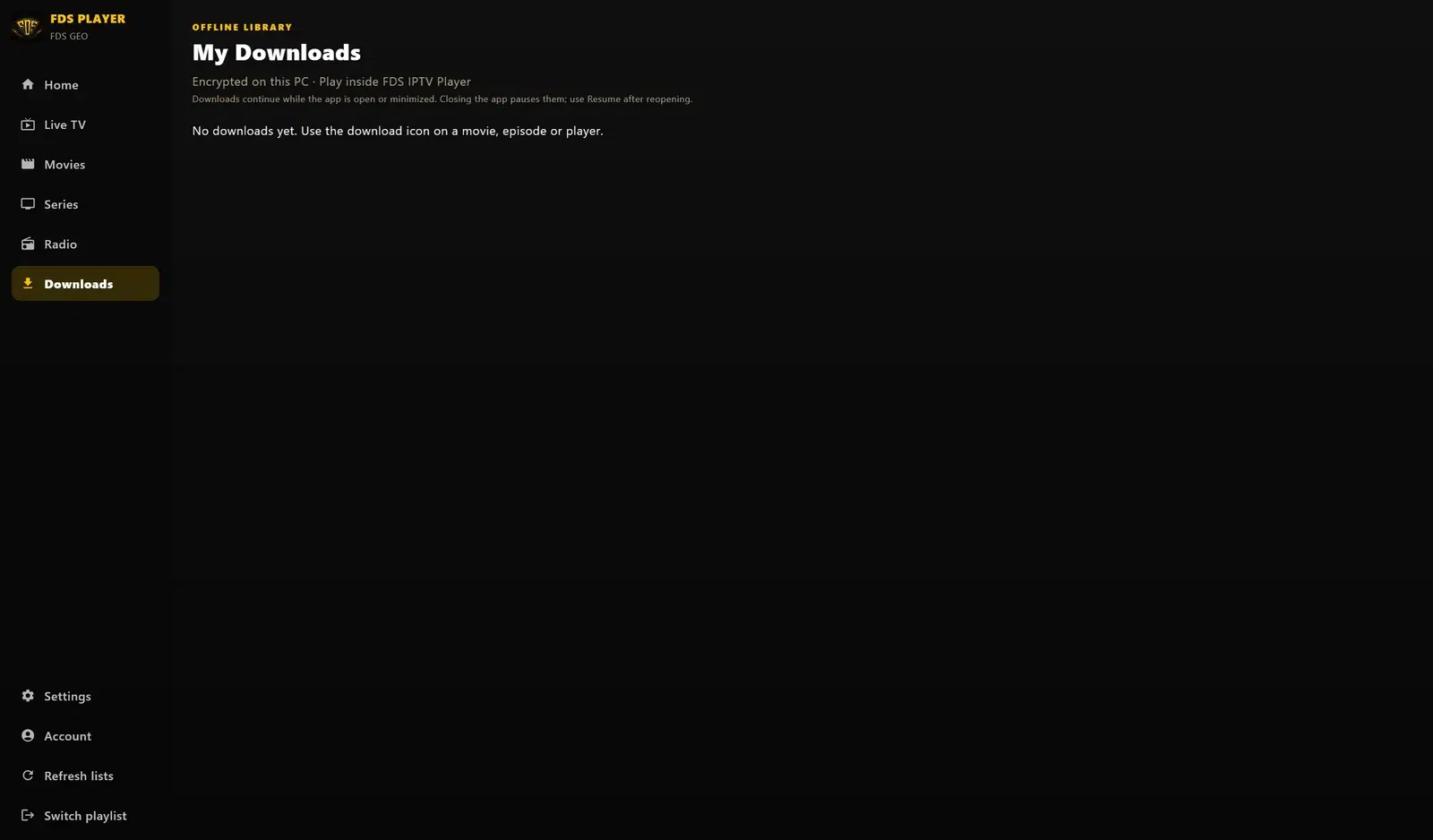
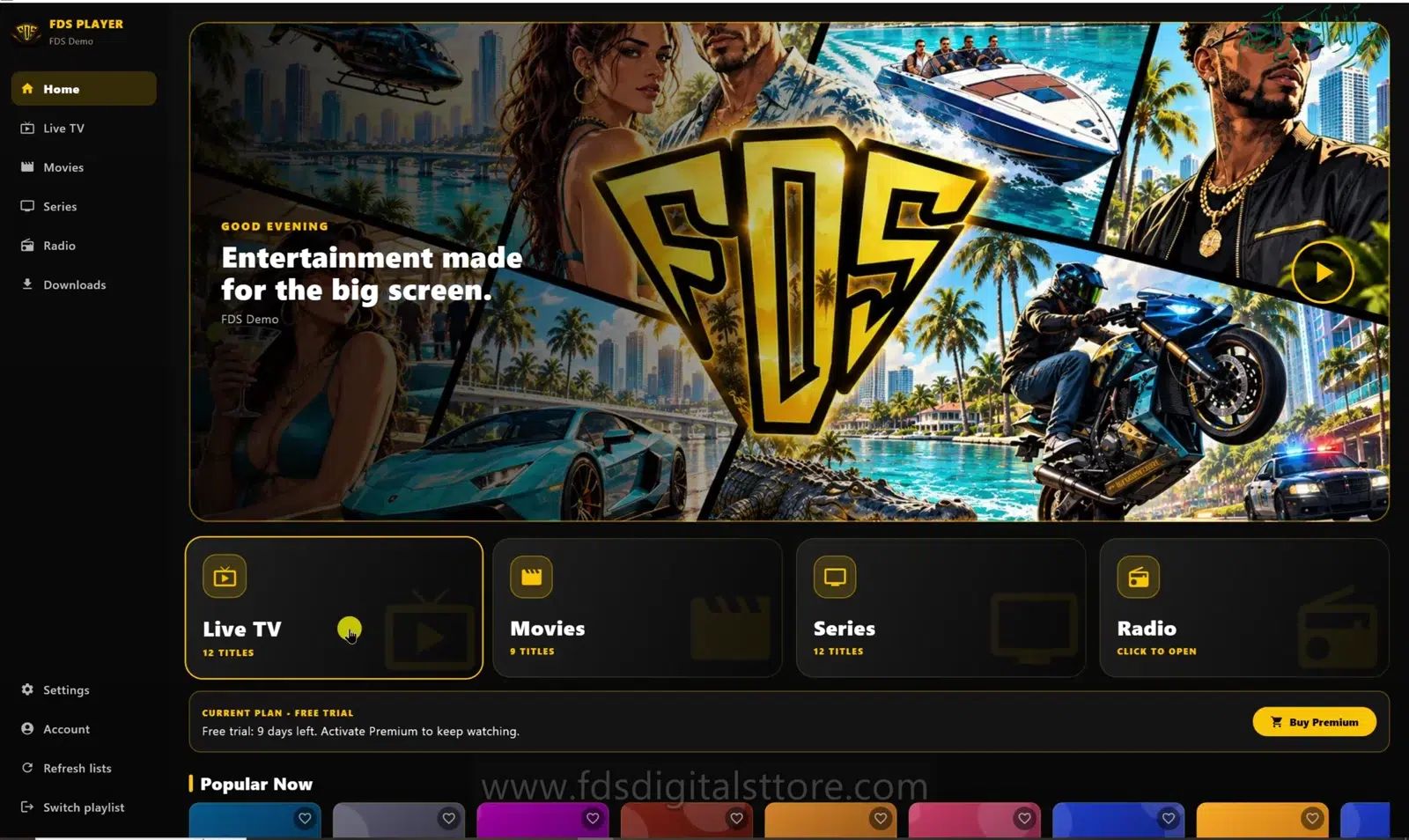
This walkthrough shows the PC edition. FDS IPTV Player for mobile and compatible LED TV may arrange the connection fields differently.
Add your playlist step by step
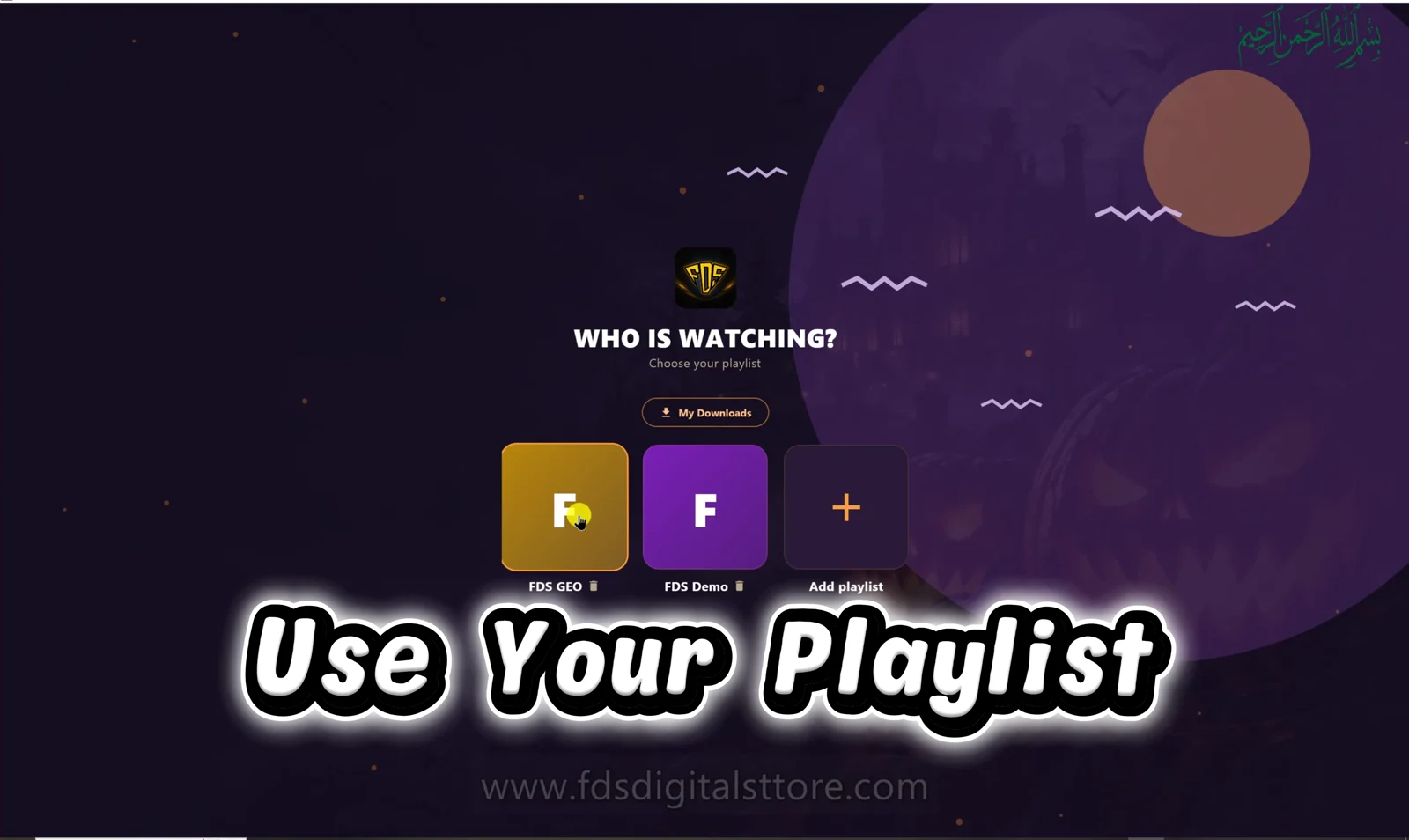
- Open the playlist connection screen.
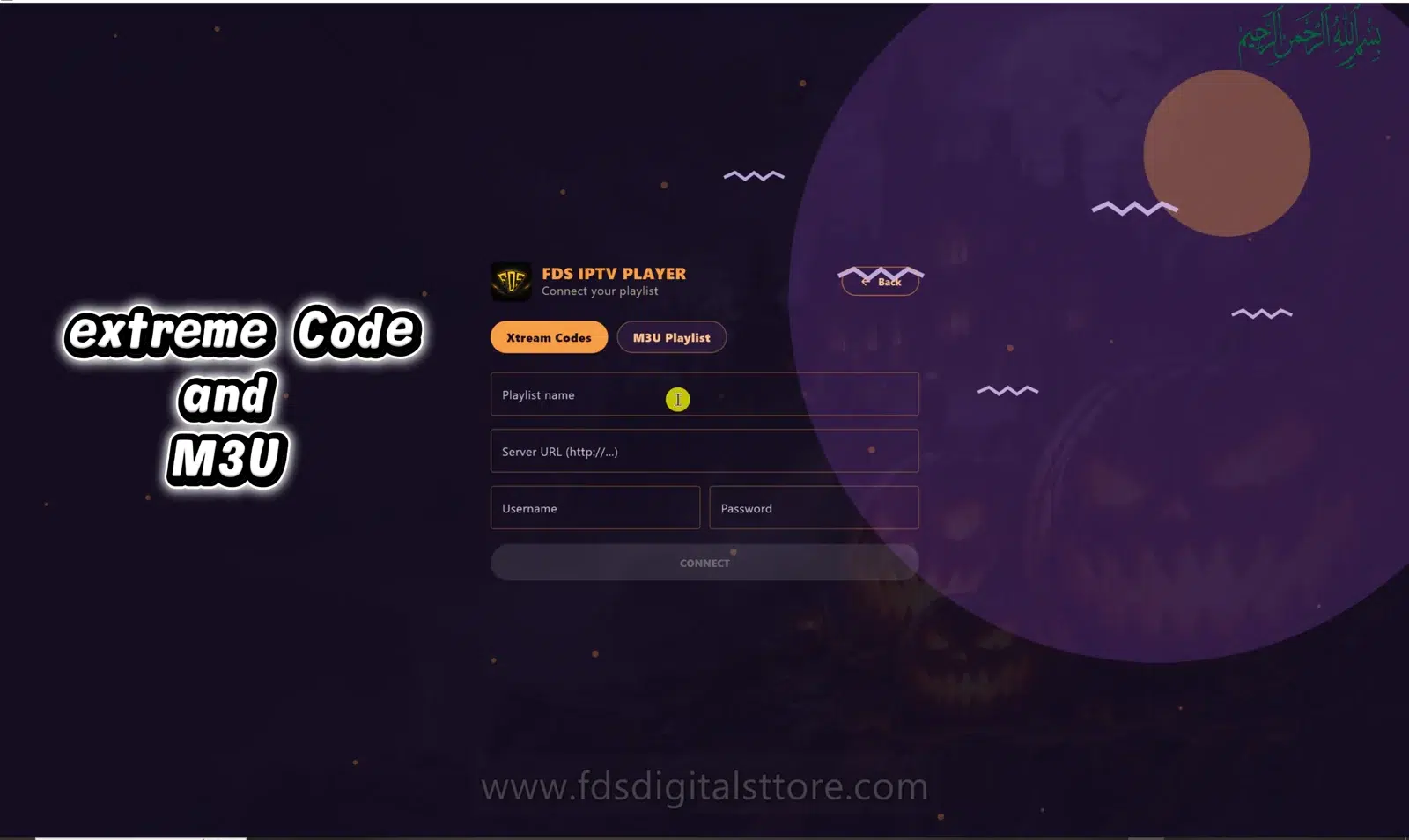
- Select M3U Playlist, rather than the separate server/account login tab.
- Enter a useful playlist name, such as “Living room” or “My collection.”
- Paste the complete M3U URL supplied for your authorised source.
- Check for accidental spaces, missing characters or an incomplete copied link.
- Connect, allow the catalogue to load and test an item you are entitled to view.
Use an original link from your source. A shortened link or copied browser address may lead to a webpage instead of the playlist file the player needs.
What if the playlist loads but looks empty?
Check that the URL still returns a valid playlist and that the provider has not changed it. An empty category can mean the source has no items for that section. It does not necessarily mean the app installation is damaged.
M3U lists also vary in the metadata they provide. Do not assume every list includes series seasons, episode descriptions or programme schedules. In the reviewed PC implementation, structured series episode lookup is associated with server/account playlists; a basic M3U list should not be expected to supply the same catalogue structure.
M3U link or account login?
Use the method your provider actually supplies. If you receive a server address plus a username and password, the account-login workflow may be the intended route. Do not put all three details into an unrelated field or guess URL patterns.
Common questions
Does FDS supply the playlist?
No. FDS is the independent player. You supply the authorised source.
Should I disable security checks for a failing URL?
No. Ask the provider to correct the link or certificate problem. Never share a password publicly to get a playlist working.
Will refreshing create missing content?
No. Refreshing can reload a source, but it cannot add content the source does not offer.
Explore FDS IPTV Player
Check current compatibility, builds and setup information on the official FDS IPTV Player website. Need help choosing the correct version? Contact FDS support with your device type—never post private playlist credentials.