

 International
 IPTV

 Ai Tools
 Content Writing Tools
 Plagirism Checker Tools



 Windows
 Office
 Anti Virus

 Facebook
 Instagram
 Tiktok
 Twitter

 Theme
 Plugin

 Xbox
 Playstation
 Rockstar
 PUBG
 PUBG UC
 Royal Pass




Before You Install FDS IPTV Player: Device Checklist

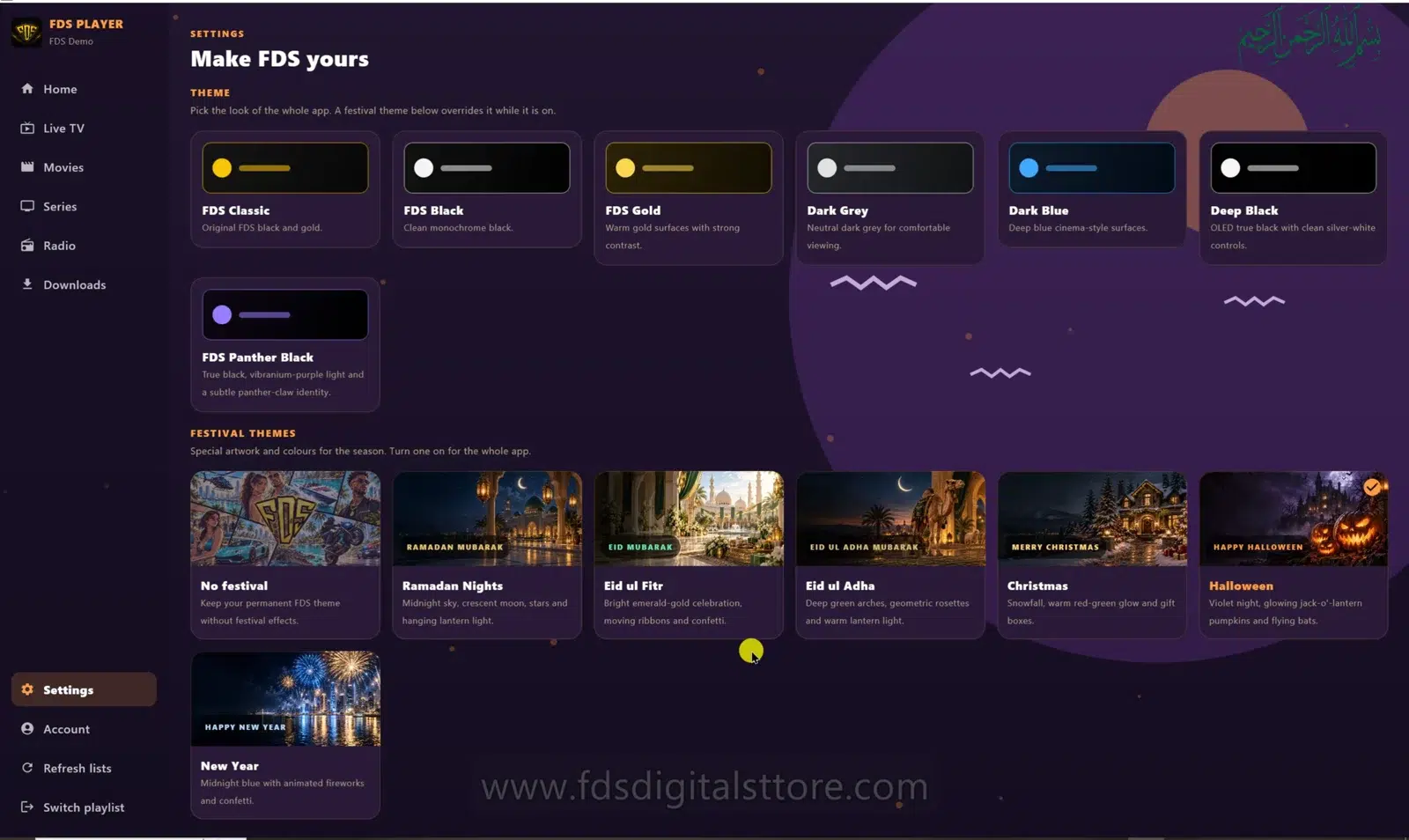
Before you install FDS IPTV Player, check a few practical details. Choosing the right build and having your source information ready prevents more frustration than installing first and guessing later. Use this checklist for mobile, compatible LED TV and PC/laptop.
1. Confirm the device—not just its screen name
“LED TV” identifies a display technology, not a universal installation platform. Find the device’s operating environment, supported app format and installation method. Ask FDS support about the exact model privately if the official instructions do not settle compatibility.
For mobile and PC/laptop, compare your system with the requirements on the official download page. Do not assume a build for one environment installs on another.
2. Check how you will control it
A touch screen, television remote and mouse/keyboard are different input methods. Check that the supported build offers navigation you can use comfortably. Readability from a sofa matters as much as the appearance of a close-up screenshot.
3. Prepare your authorised playlist
Have the actual M3U URL or supported server/account details ready. A store receipt is not a playlist. Confirm with your provider that the account is active and that the intended device is permitted under its connection limits.
4. Check connection and storage
Streaming needs a stable connection; a single speed-test score does not tell the whole story. Offline features, where supported, also require local storage. Leave enough room for the app and any permitted downloads rather than filling the device completely.
5. Use an official download source
Start at the official FDS player website. Avoid repackaged installers, unsolicited files and pages that promise included premium channels. If a download triggers a security warning, stop and verify the source instead of disabling protection.
6. Read the current licence terms
Confirm trial conditions, device entitlement, activation steps and support arrangements before purchasing. Prices and offers can change, so use the current product information rather than a copied price in an old article. A player licence does not buy access to a third-party catalogue.
7. Run a small first-use test
- Connect your source.
- Play an item you are authorised to access.
- Check navigation and available appearance controls.
- Test your specific must-have feature in the installed build.
- Contact support with app version and error details if anything fails.
Will one screenshot prove my TV is supported?
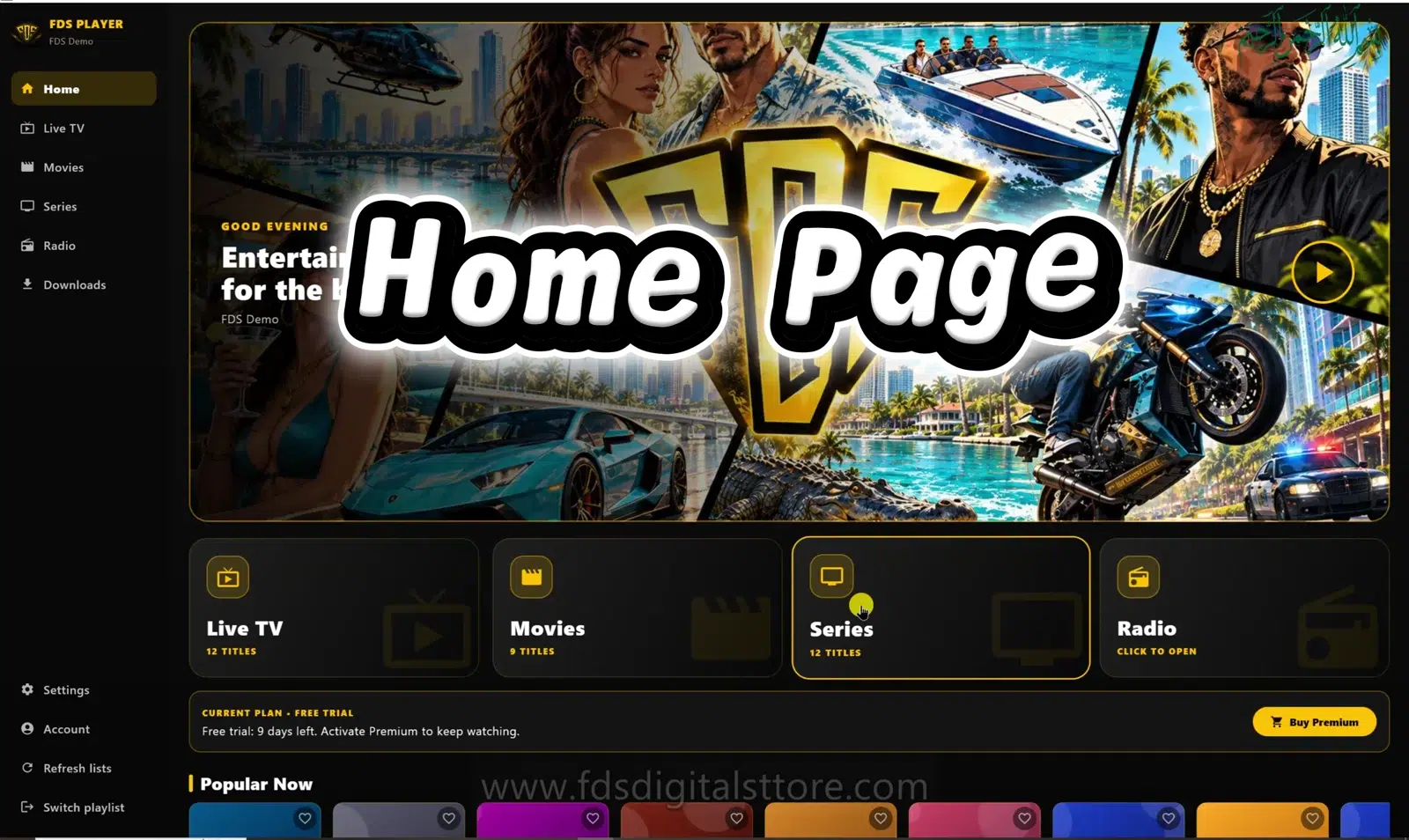
No. Our PC screenshot illustrates the interface, not compatibility with every display.
Should I choose a player because it promises no buffering?
Be cautious. Playback also depends on the source, network and device. No honest player comparison can guarantee every stream will always work.
Explore FDS IPTV Player
Check current compatibility, builds and setup information on the official FDS IPTV Player website. Need help choosing the correct version? Contact FDS support with your device type—never post private playlist credentials.